
Help4 Builder Screenshots
See the screen and find the next step. This visual guide is organized by the job you want to do: open a full-size example, read the caption and continue to the relevant written walkthrough.
Authentic documentation screenshots captured in July/August 2026, not generated interface mockups. The latest package may have newer labels and workspace arrangements.
Choose your task
Start with the task, not a technical module name.
Reusable site design
Find shared templates and starters.
Content and business tools
Find fields, products, forms and search settings.
1. Open the page and find the thing to change
Open the intended page in Studio. Select the content itself when supported; use Navigator to locate an item that is nested or hard to click.
Find the page
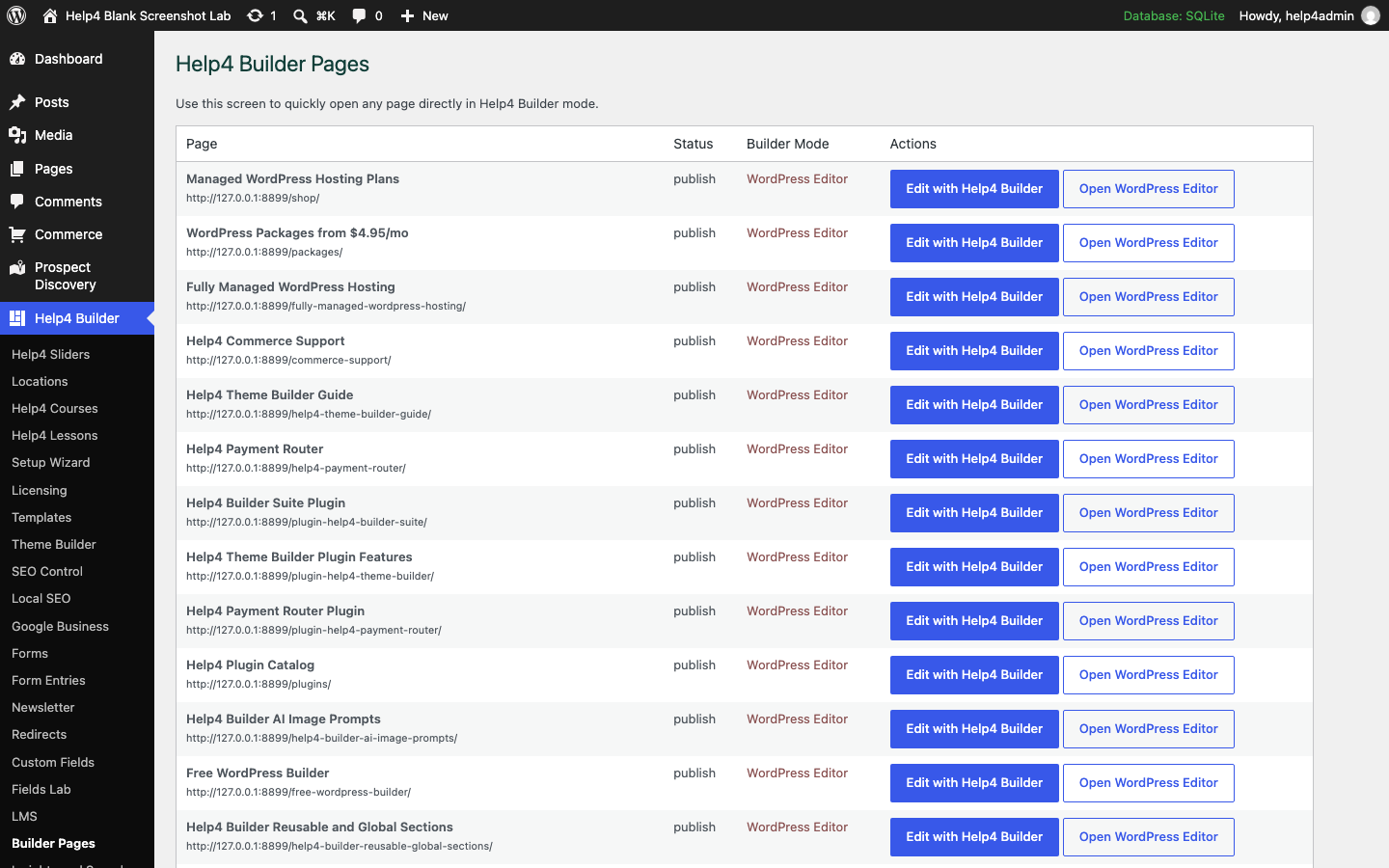
Find a layer with Navigator

2. Edit text and replace the correct image
Change one thing first, then check the accurate draft. Do not delete a whole section just to replace its image.
Change a heading

Choose the image

3. Reuse a design and check responsive output
A shared template is a sitewide part, while a starter is a starting layout. Review which one you are changing before saving.
Shared site templates
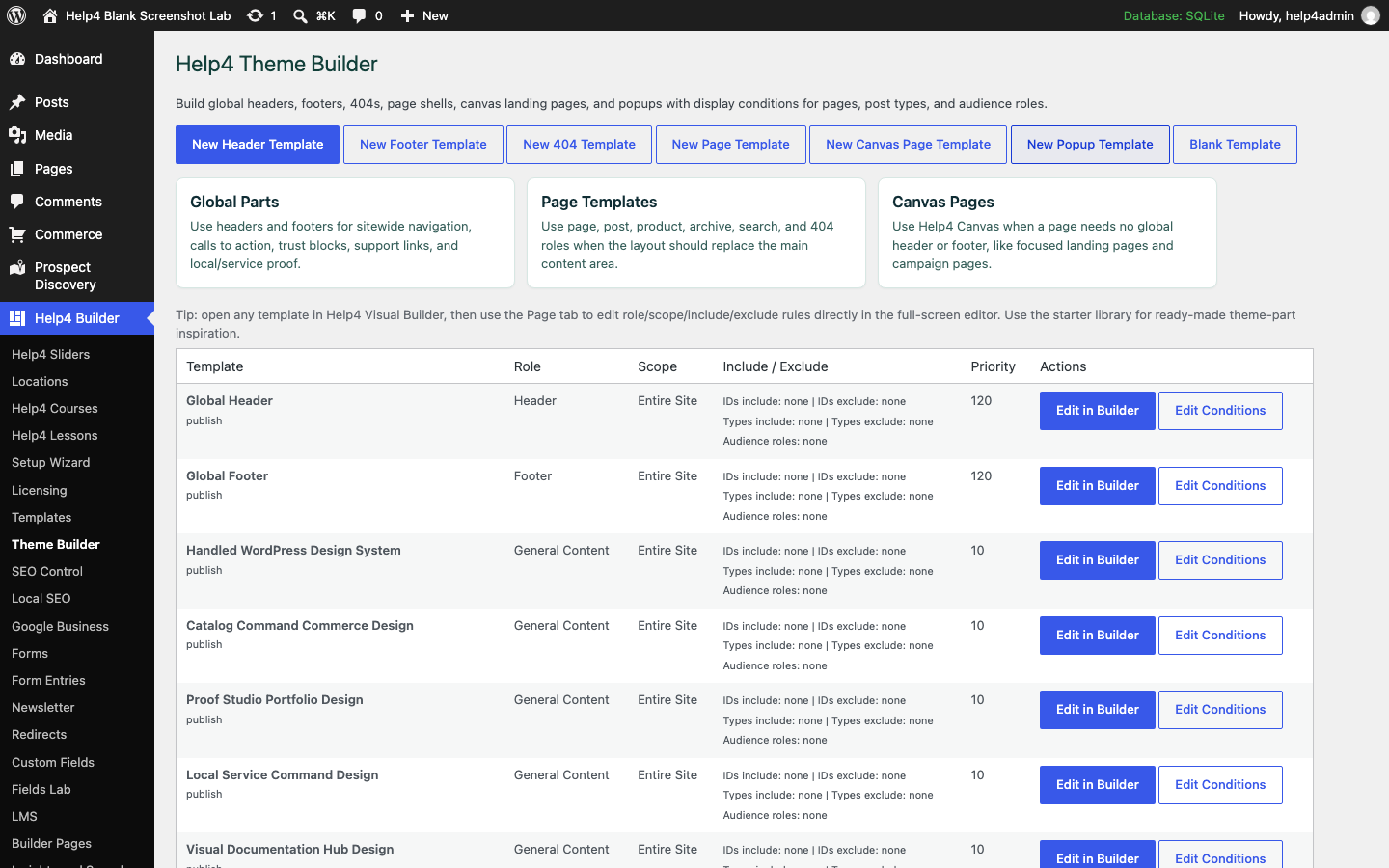
Mobile preview

4. Keep content structured
Store the source information in understandable fields. Use repeaters for repeated rows and approved dynamic bindings for reusable layouts.
Field groups

Repeater and relationship setup

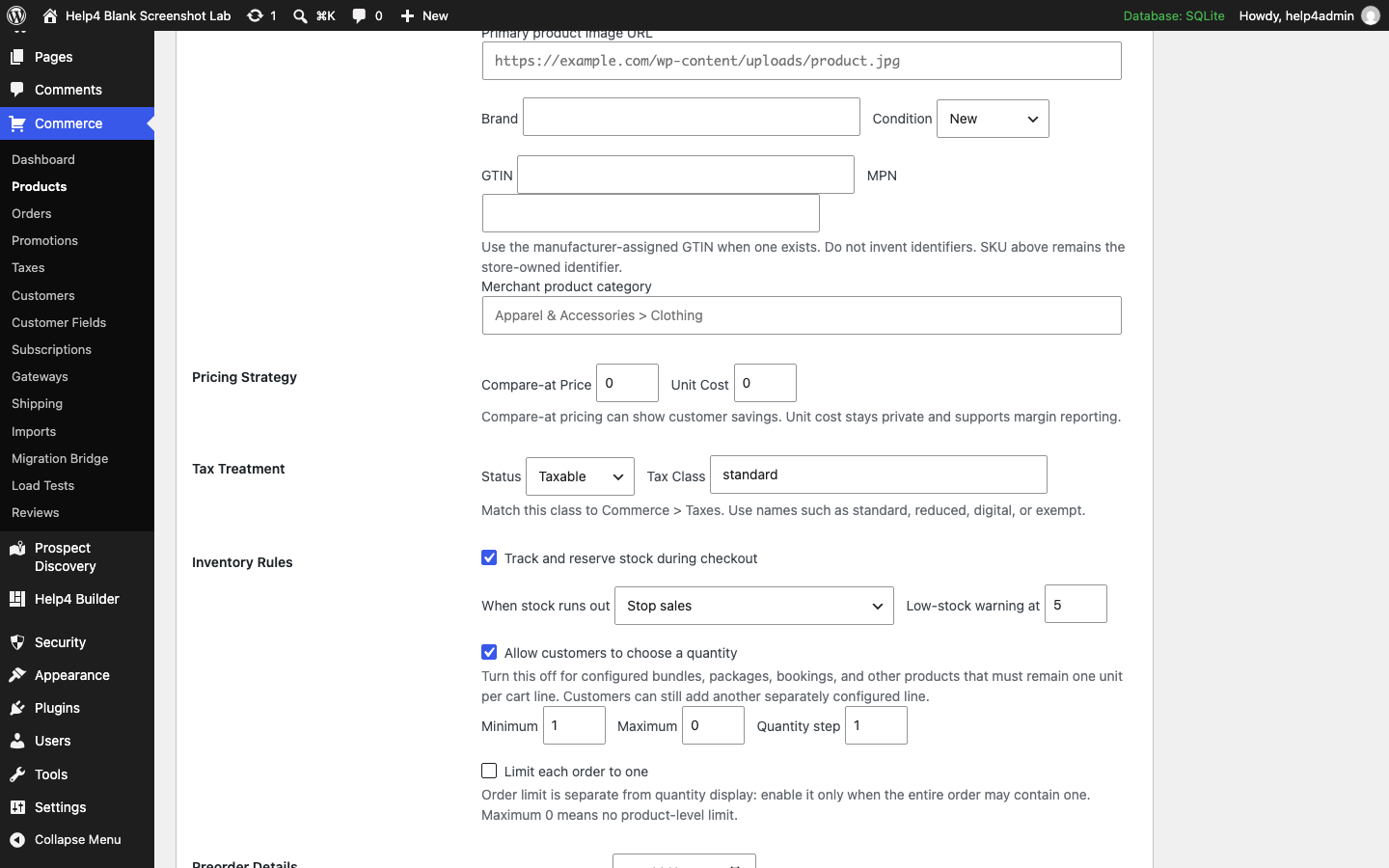
5. Create the product and verify its options
Start with one complete test product. Check the customer input and order data, not only the product description.
Product editing

Quantity rules
6. Add the form and check the response
Create the saved form first, then place it on the page. Verify a useful success state and the stored entry before calling it complete.
Saved forms
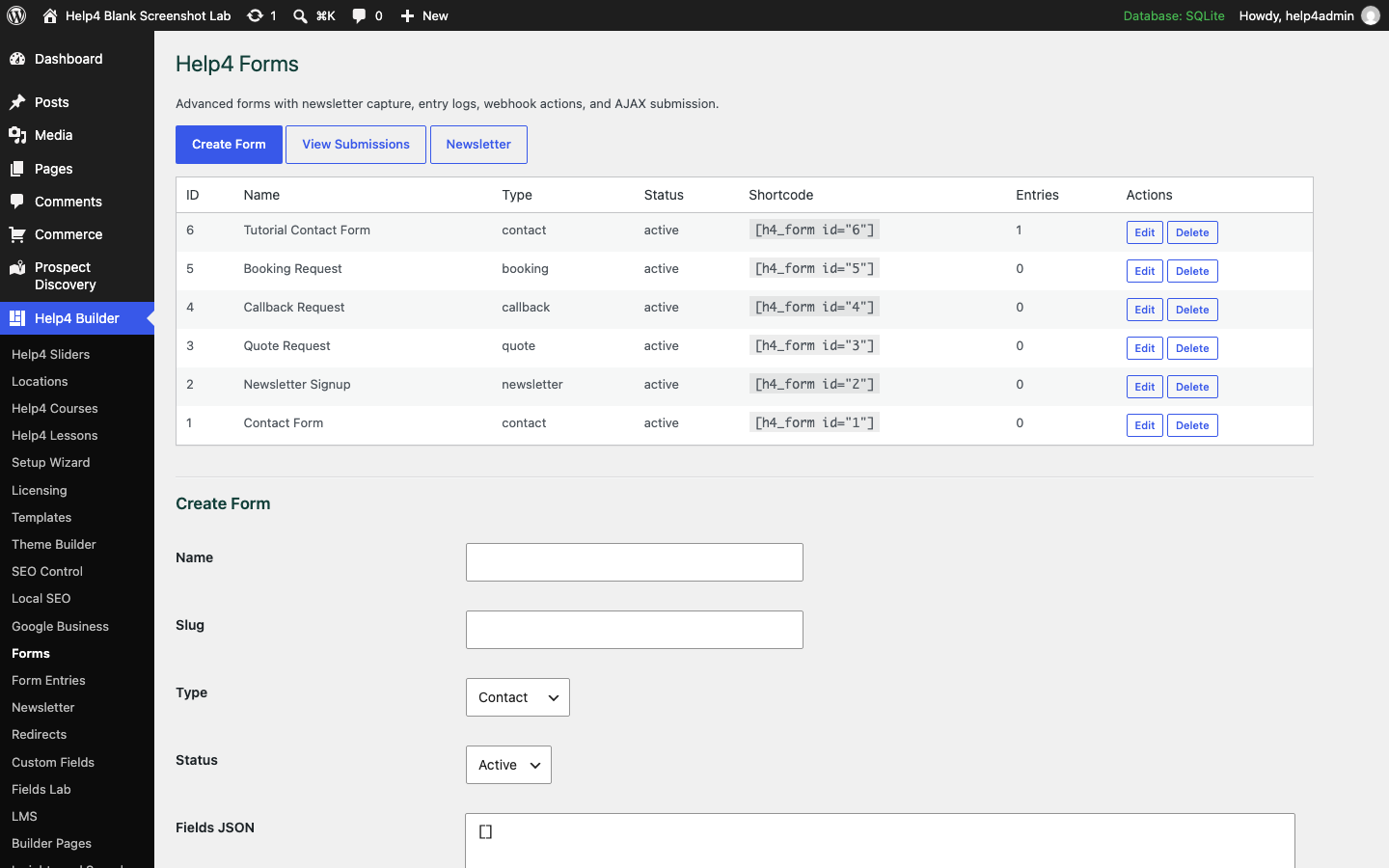
Entries

7. Give search and sharing clear information
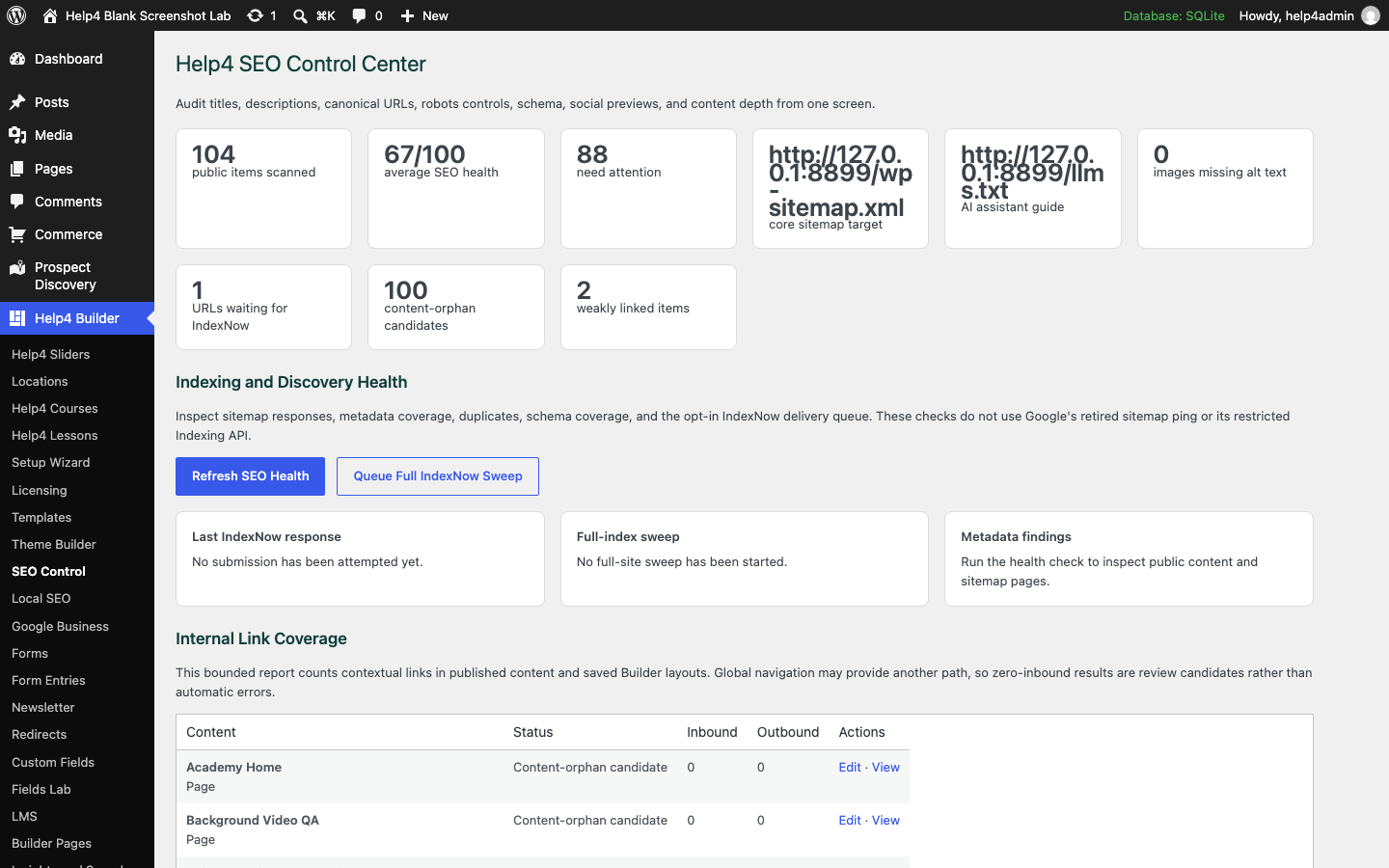
Use the SEO screens as a checklist for accurate page information. A score is not a ranking promise.
Page SEO review
Local business facts

8. Save, reopen and verify the public page
Finish one edit all the way through before starting several others. Verify the exact page and the intended publishing state.
- Review the accurate draft and current save state.
- Save the intended draft or publish/update action.
- Reopen the same page and confirm the content.
- Open the public URL and check desktop and mobile.
- If something fails, preserve the prior version and use the recovery/help path.
More tools, explained by task
The full tutorial library covers tools beyond this visual introduction.
Design and safe editing
Site operations
Questions before you start
Why do my controls look different from a screenshot?
The screenshots are authentic July/August 2026 documentation examples. Labels and workspace arrangements can change in later releases. Use the written guide and contextual Help for your installed version.
Can I open a screenshot at a readable size?
Yes. Each example has an Open full-size link to the original image. The caption explains what to do next and links to the relevant walkthrough.
Should I replace a whole section to change a photo?
No. Select the intended image or supported migrated image and replace its source. Recheck crop, alt text, draft preview and the public page before changing unrelated structure.
Where do I get the plugin shown here?
Use the current stable Builder download from the main product page. Do not choose a ZIP version from an older screenshot label.
Still cannot find the item you need?
Send the page URL, installed version and the specific edit you are trying to make. A screenshot of the selected item helps us distinguish a navigation problem from an editing defect.