
Help4 Google Business Profile and Reviews Guide
Before changing settings
Confirm the site, user state, current version, and recovery path.
Open the exact site and feature named in the request, record its current behavior, and keep a bounded recovery option. Change one setting group at a time so the verification can identify what actually changed.
Target
Record the domain, URL or admin screen, user role, viewport, and specific outcome before changing configuration.
Current state
Capture the relevant version, enabled module, existing value, and a fresh public or runtime check.
Recovery
Keep the previous immutable package, WordPress revision, export, or narrow data snapshot needed for this feature.
Privacy
Keep credentials, private customer data, payment secrets, nonces, and protected files out of screenshots and support reports.
Visual orientation
Match the screen before following the steps.
Open each image at full size. The numbered notes explain what the screen controls and what to confirm before changing customer content.
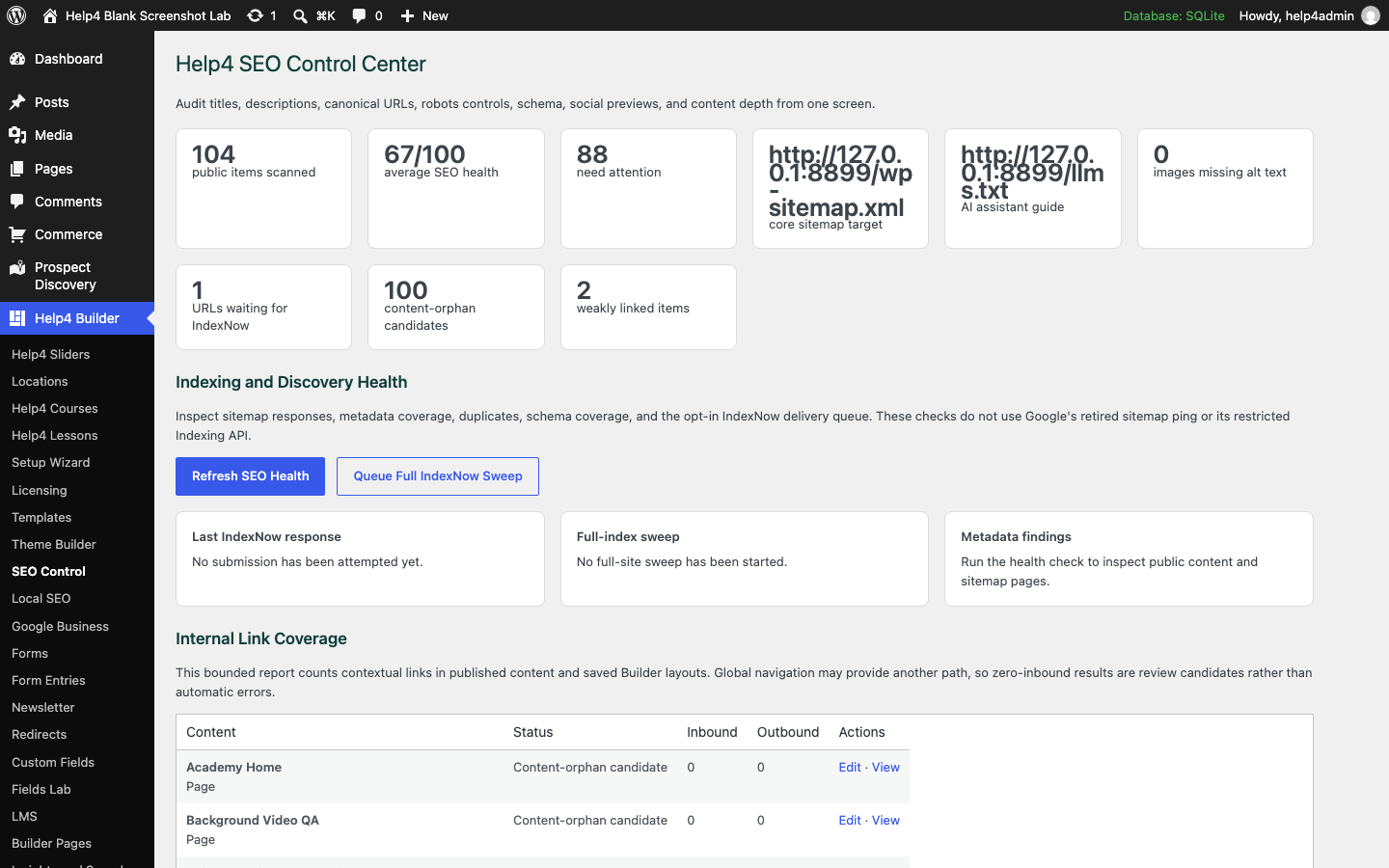
Screen 1
SEO Control
Review metadata, social sharing, schema, readability, indexing, and site-level discovery signals.
Confirm: the page title, selected item, plugin version, and intended responsive view match the task.
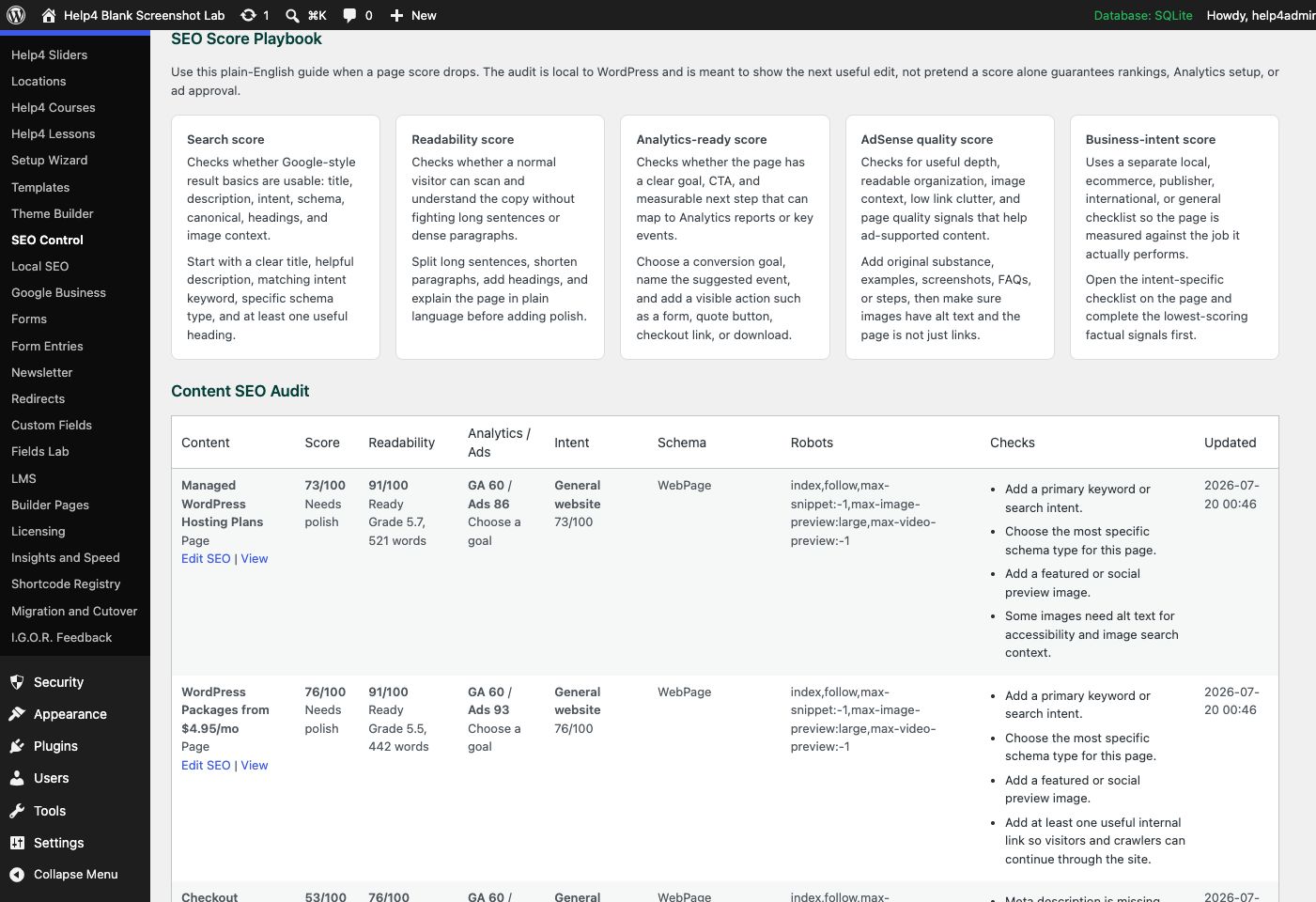
Screen 2
SEO score playbook
Understand search, readability, analytics-readiness, content-quality, and business-intent scores, then act on page-specific checks.
Confirm: the page title, selected item, plugin version, and intended responsive view match the task.
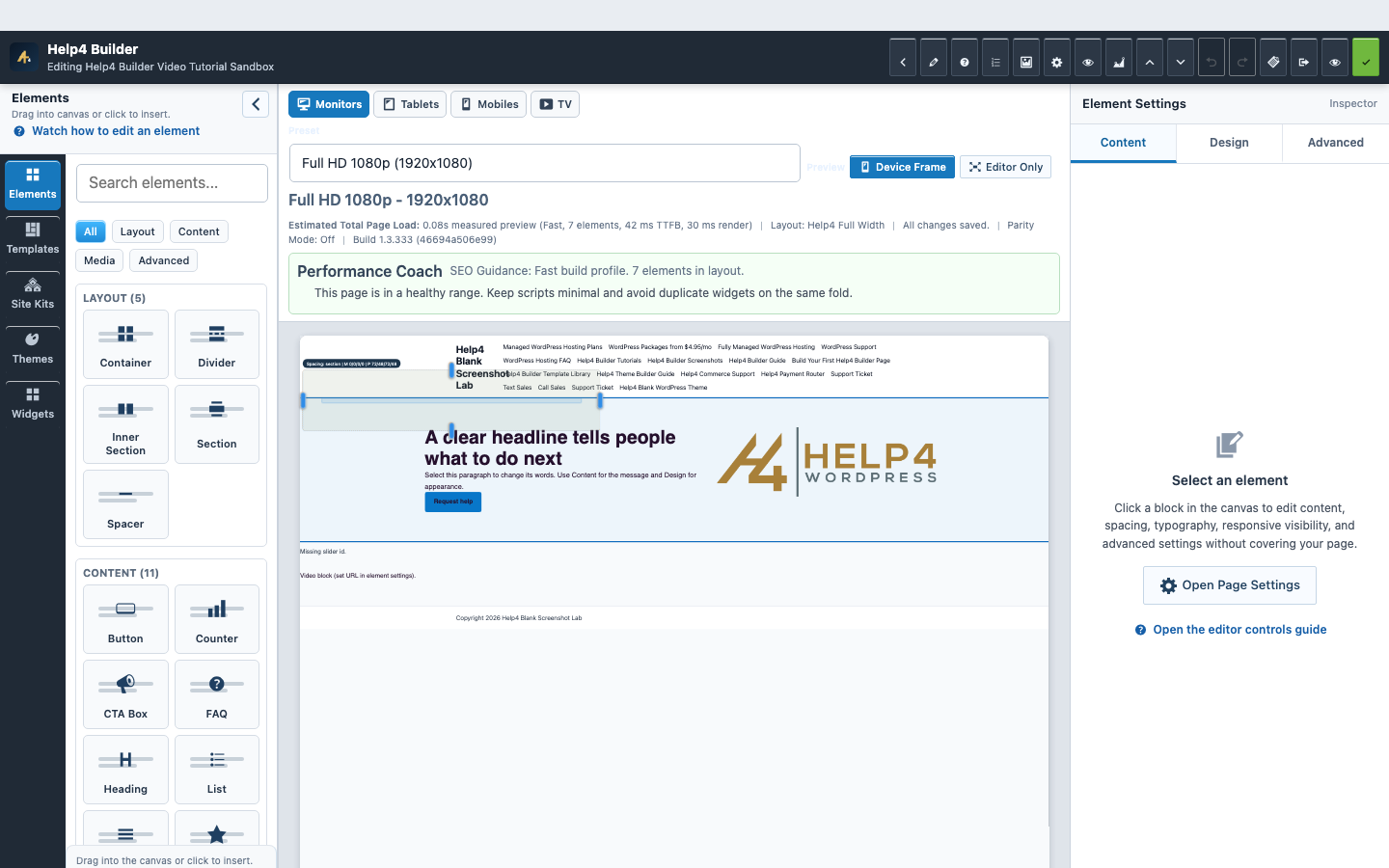
Screen 3
Current Studio workspace
See the element library, device controls, live page frame, inspector, performance guidance, and save state together.
Confirm: the page title, selected item, plugin version, and intended responsive view match the task.
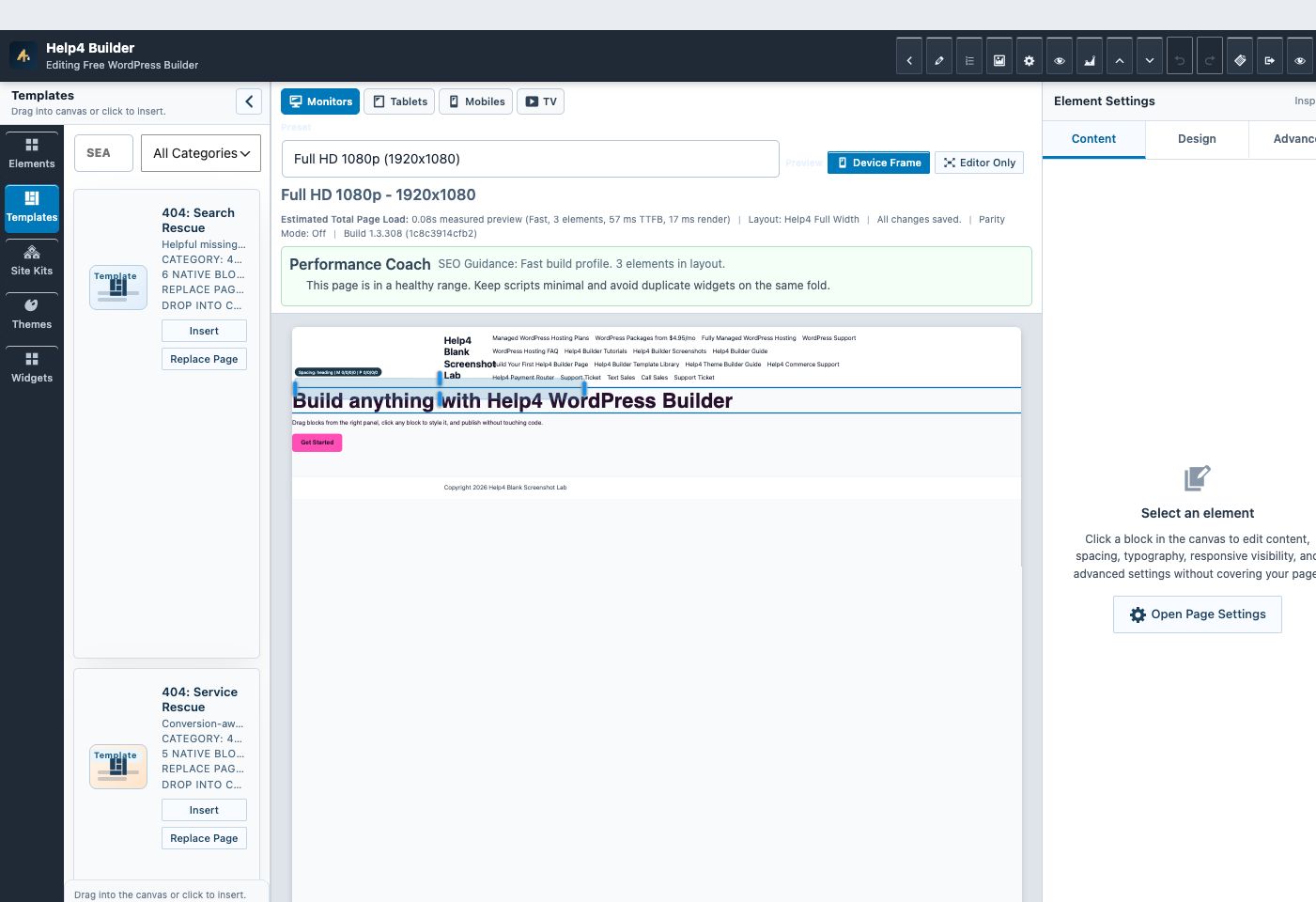
Screen 4
Builder Studio
Use the live page frame, element library, template library, inspector, responsive controls, performance guidance, and save state in one workspace.
Confirm: the page title, selected item, plugin version, and intended responsive view match the task.
Watch the real workflow
Watch the clicks before making the change.
Use the narrated walkthrough first, then follow the written steps and verification checks on this page.
Lesson 45
Google Business Profiles, Reviews, and Local Proof
Connect accurate business identity, locations, service areas, maps, reviews, visible proof, and local structured data.
Read the complete transcript
- Match the Real Business
Enter the real business name, phone, website, address or service area, hours, categories, support route, and social profiles exactly as the organization uses them publicly. Do not create a fake location or copy one site identity into another. Local structured data should describe visible, supportable business facts.
- Connect the Approved Profile
Use the approved domain, location, Place ID, map, and review connection without exposing private credentials in page content or screenshots. Verify the selected profile belongs to the business and location being edited. Keep API usage bounded to the data the site actually displays and refresh only on an appropriate schedule.
- Place Honest Local Proof
Add the business identity, location or service area, map, contact path, and review output where they help a visitor make a decision. Keep visible content and structured data aligned, label aggregate values accurately, and never manufacture, filter deceptively, or rewrite customer reviews as if they were verbatim.
- Verify the Local Surface
Check the page at desktop and mobile, then test the address or service-area language, click-to-call link, directions, map consent behavior, review source, profile destination, social preview, local schema, and public contact route. Repeat the check after a location, hours, or business-name change.
Lesson 18
Local, International SEO, and IndexNow
Configure truthful business entities, locations, languages, social profiles, sitemaps, and change notifications for wider discovery.
Read the complete transcript
- Define the Real Business
Open Local SEO and enter the public business name, phone, website, category, hours, address or truthful service area, and social profiles. Do not create a location for an address that does not serve customers. Visible contact content and structured data should describe the same entity.
- Plan Locations and Languages
Create a location page only when it provides distinct, accurate help for that market. For multilingual sites, use the real language and regional URLs, translated content, canonicals, and alternate-language relationships. Avoid copying a city name into many otherwise identical doorway pages.
- Review Discovery Settings
Check sitemap coverage, robots rules, canonical URLs, Bing and Google verification fields, and social profiles. Enable IndexNow only on the production site with a valid key endpoint. Queue changed or deleted URLs rather than resubmitting the entire site after every small edit.
- Confirm the Public Signals
Verify the business facts in visible content, local schema, maps, contact links, social previews, sitemap pages, and external profiles. Review IndexNow response history and retries without treating submission as guaranteed indexing. Search engines still decide whether and when a page appears.
Local identity
Use one accurate business entity across pages, schema, maps, and profiles.
Local visibility begins with consistent public facts and useful service content; a review widget or schema block cannot repair a false address, stale hours, or mismatched phone number.
Business truth
Use the real customer-facing name, primary phone, canonical website, category, hours, and address or service-area model.
Location ownership
Create a location only when the business genuinely operates or serves customers according to platform rules.
Review integrity
Display genuine review text and source attribution without rewriting sentiment or inventing ratings.
Entity consistency
Keep visible content, local schema, maps, contact pages, and external profiles aligned.
Guided walkthrough
Make one verified change at a time.
Each step includes the action, why it belongs in this order, and the checkpoint to verify before moving forward.
-
Complete the business profile wizard
Choose the truthful business type and review the recommended defaults before saving site-owned settings.
Why nowStarting from a confirmed target prevents a correct edit from being applied to the wrong page, template, product, or responsive view.
Done whenThe complete the business profile wizard result is visible, remains after reselecting the item, and has not changed unrelated content or styling.
-
Enter identity and contact data
Set brand name, phone, support URL, social profiles, location, hours, and service-area details that visitors can verify.
Why nowCompleting and checking this step creates a known-good checkpoint before the next control changes the page state again.
Done whenThe enter identity and contact data result is visible, remains after reselecting the item, and has not changed unrelated content or styling.
-
Configure the profile connection
Use the approved Google project and least-privilege credentials, then confirm the intended business and location before importing data.
Why nowCompleting and checking this step creates a known-good checkpoint before the next control changes the page state again.
Done whenThe configure the profile connection result is visible, remains after reselecting the item, and has not changed unrelated content or styling.
-
Place local business content
Add the Google Business or local business widget to the relevant page and choose only the details that support that page.
Why nowCompleting and checking this step creates a known-good checkpoint before the next control changes the page state again.
Done whenThe place local business content result is visible, remains after reselecting the item, and has not changed unrelated content or styling.
-
Review maps and service areas
Verify map destination, address privacy, service-area wording, mobile interaction, and no duplicate location pages.
Why nowCompleting and checking this step creates a known-good checkpoint before the next control changes the page state again.
Done whenThe review maps and service areas result is visible, remains after reselecting the item, and has not changed unrelated content or styling.
-
Verify review output
Check source attribution, rating math, review text, cache age, zero-review state, and link destination.
Why nowCompleting and checking this step creates a known-good checkpoint before the next control changes the page state again.
Done whenThe verify review output result is visible, remains after reselecting the item, and has not changed unrelated content or styling.
-
Audit public local SEO
Compare visible facts, LocalBusiness schema, canonical, social preview, sitemap, contact page, and the external profile.
Why nowThe final verification separates an editor preview from a result that is actually saved, responsive, interactive, and ready for visitors.
Done whenThe audit public local seo result is visible, remains after reselecting the item, and has not changed unrelated content or styling.
Release check
Test the real public or member outcome, not only the settings screen.
Reopen the saved setting, run the intended workflow in the correct visitor state, test desktop and phone behavior where a frontend surface exists, and inspect fresh browser or PHP errors from the same attempt.
Persistence
The saved values remain correct after reload and do not overwrite newer settings from another session.
Public behavior
The intended visitor can complete the workflow and an unintended visitor cannot access protected output.
Responsive behavior
Controls, text, tables, media, dialogs, and focus stay visible and usable at 768px, 390px, and 360px.
Fresh evidence
The final request has the expected status, output, cache state, and no new related console or PHP error.
Common questions
Answers for the decisions that block this setup most often.
Should a service-area business publish a private home address?
No. Use the truthful service-area configuration and publish an address only when it is a legitimate customer-facing location.
Can review wording be rewritten?
Do not change the meaning or sentiment of a customer review; preserve genuine text and provide clear source attribution.
Does adding local schema guarantee local rankings?
No. Structured data helps systems understand truthful page content, but no setting can guarantee indexing, display, or ranking.
Continue learning
Use the next guide that matches the work in front of you.
The full tutorial hub remains available without repeating dozens of unrelated cards on this page.
Start here
Install and setup
Download the ZIP, activate Builder Suite, understand the blank-theme path, and run the first clean check.
First page
Build a page safely
Open Builder Pages, launch Studio, build structure first, check mobile, then publish or hand it to Help4.
Editor controls
Know which tab changes what
Use Content for information, Design for appearance and responsive values, and Advanced for identity, attributes, visibility, and motion.
Recovery
Edit without losing work
Replace media safely, recognize stale drafts, and restore a known-good page snapshot from Page Settings History.
Responsive
Control every viewport
Set spacing, widths, columns, alignment, and typography independently for desktop, tablet, and mobile.
Templates
Choose a starter
Pick a starter spec by page job: service, product, support, recent work, local SEO, launch, or checkout recovery.
Need a second set of eyes?
Send one complete, privacy-safe support record.
Include the affected URL or admin screen, current Builder version, user state, exact steps, expected result, actual result, and one screenshot or fresh error when available.