
Help4 Builder Guide
Before the first click
Confirm what you are editing and where each kind of change belongs.
Read the page or template title first, select the exact element in the canvas or Navigator, then use the inspector tab that matches the job. This prevents a content change from becoming an accidental layout change.
Content
Change words, links, images, icons, data sources, shortcodes, and element-specific information.
Design
Change colors, typography, spacing, borders, radius, alignment, states, and desktop, tablet, or mobile values.
Advanced
Change labels, anchors, classes, attributes, visibility rules, motion, and other expert controls.
Page Settings
Use page-wide history, globals, publishing, template assignment, and recovery controls instead of editing one element.
Visual orientation
Match the screen before following the steps.
Open each image at full size. The numbered notes explain what the screen controls and what to confirm before changing customer content.
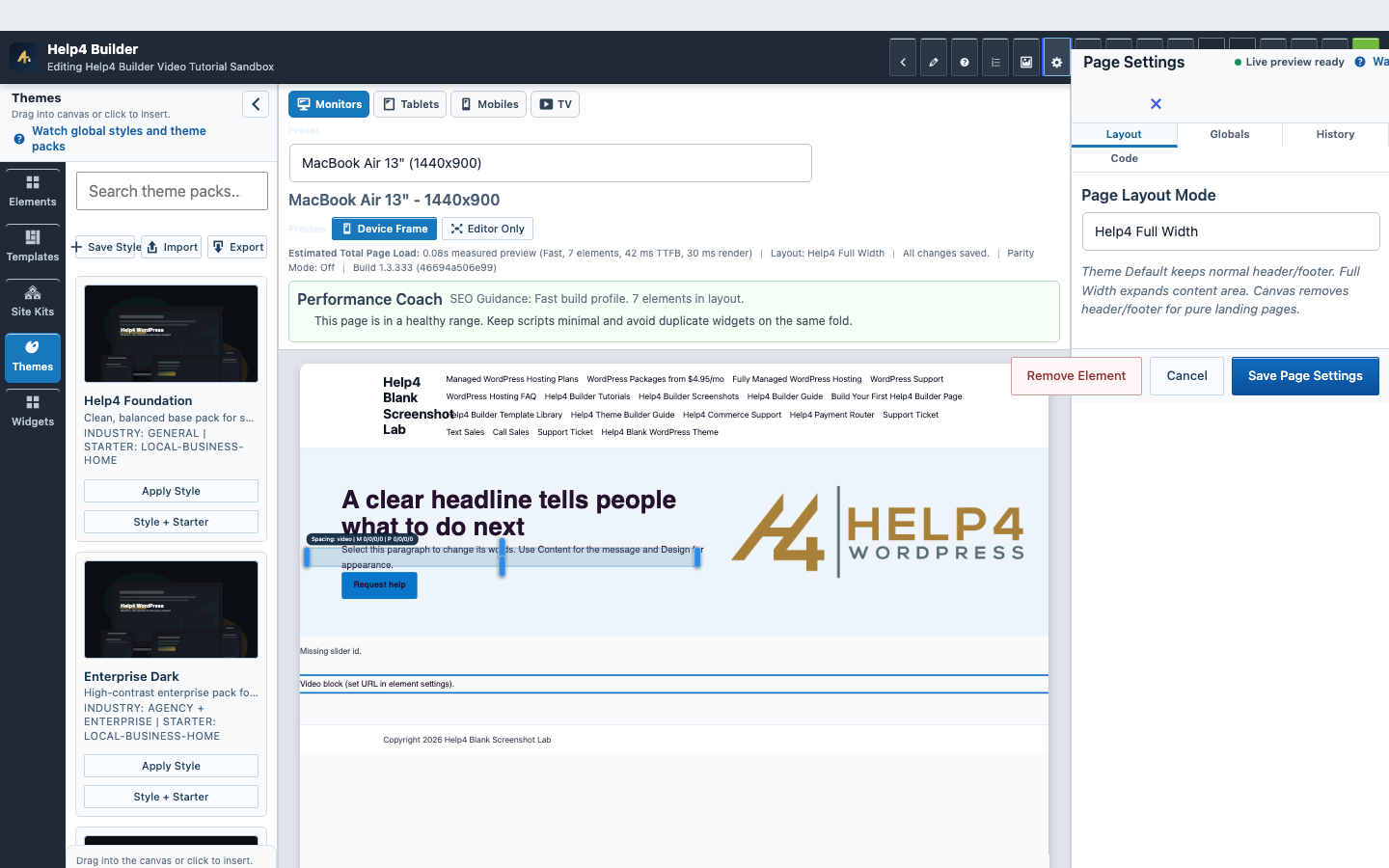
Screen 1
Page Settings and recovery
Confirm page-level layout, history, preview, and recovery controls before a larger edit.
Confirm: the page title, selected item, plugin version, and intended responsive view match the task.
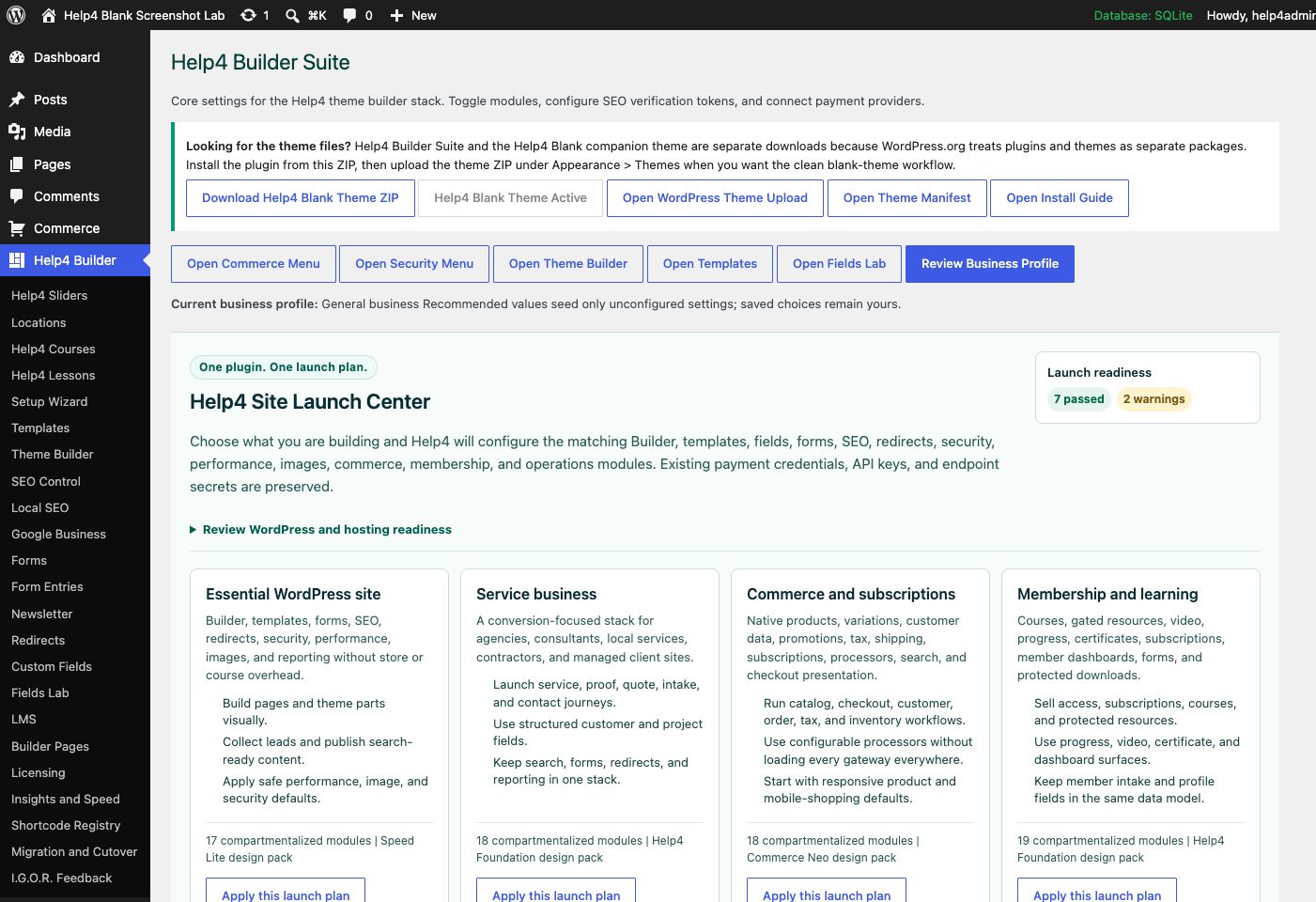
Screen 2
Settings and launch center
Choose a launch plan, confirm modules, download Help4 Blank, review readiness, and keep the site configuration in one place.
Confirm: the page title, selected item, plugin version, and intended responsive view match the task.
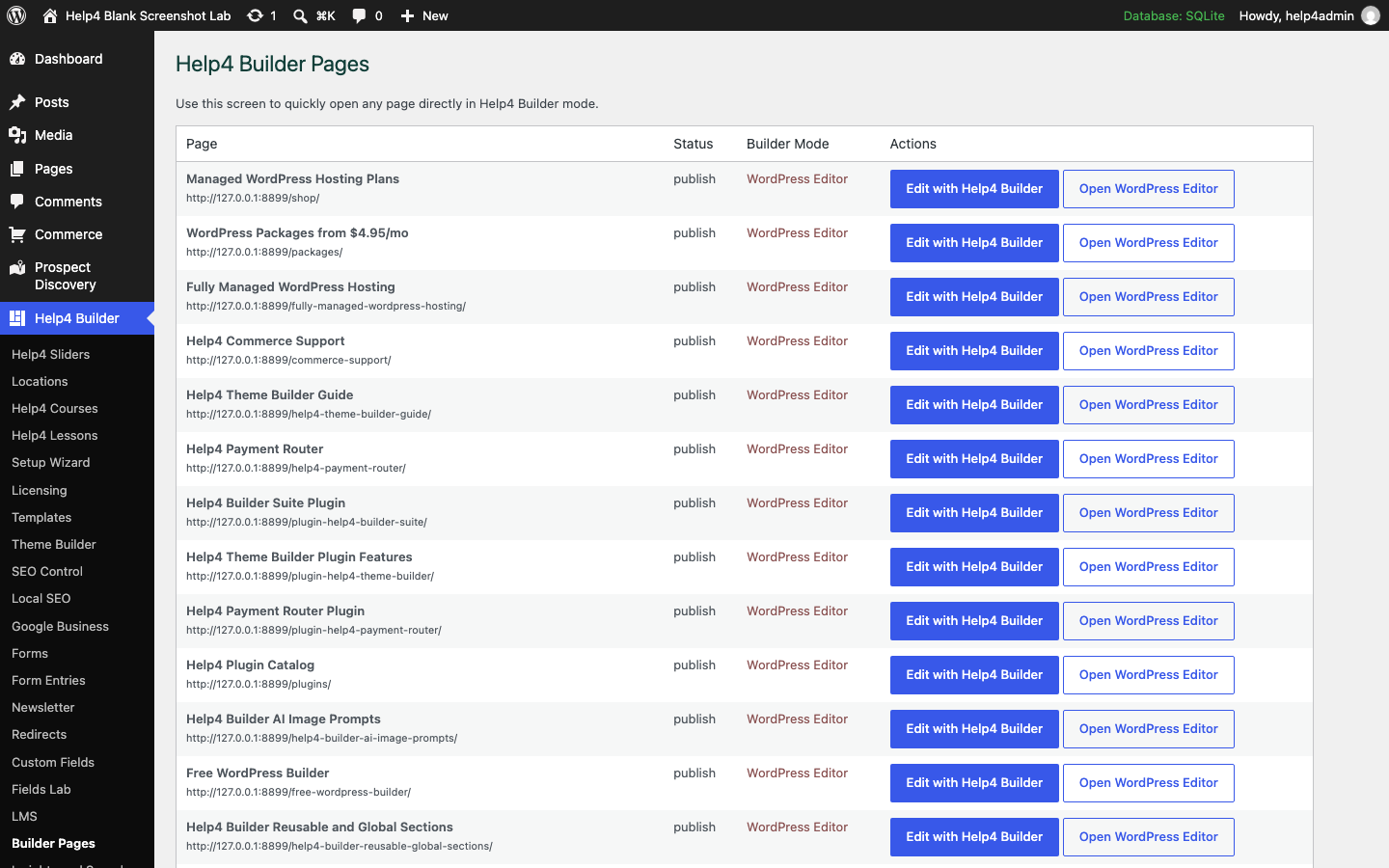
Screen 3
Open the correct page
Find the intended page and open Studio without confusing it with a reusable template or similarly named draft.
Confirm: the page title, selected item, plugin version, and intended responsive view match the task.
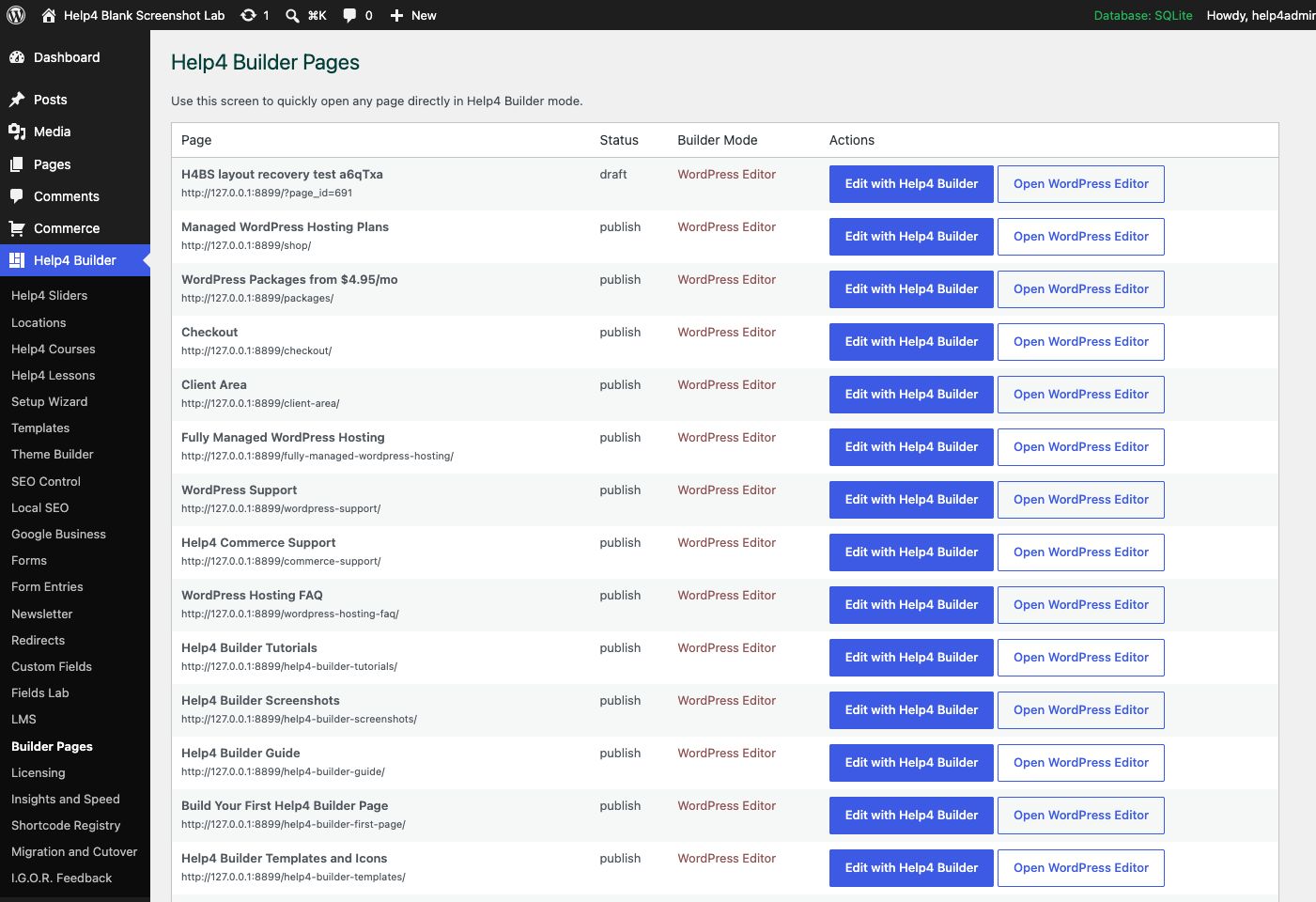
Screen 4
Builder Pages
Find Builder-enabled pages, open Builder Studio, and keep drafts separate from live customer pages.
Confirm: the page title, selected item, plugin version, and intended responsive view match the task.
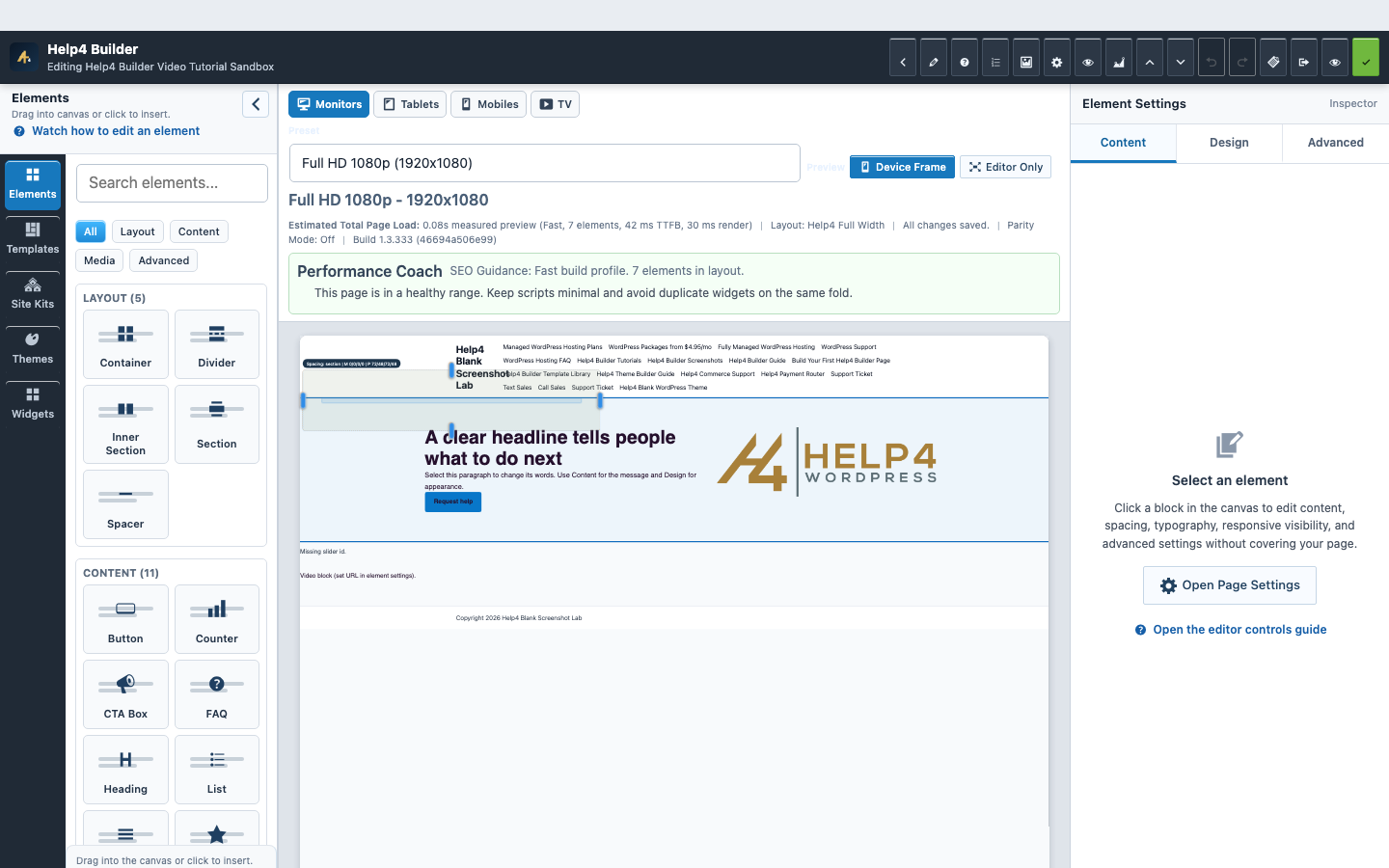
Screen 5
Current Studio workspace
See the element library, device controls, live page frame, inspector, performance guidance, and save state together.
Confirm: the page title, selected item, plugin version, and intended responsive view match the task.
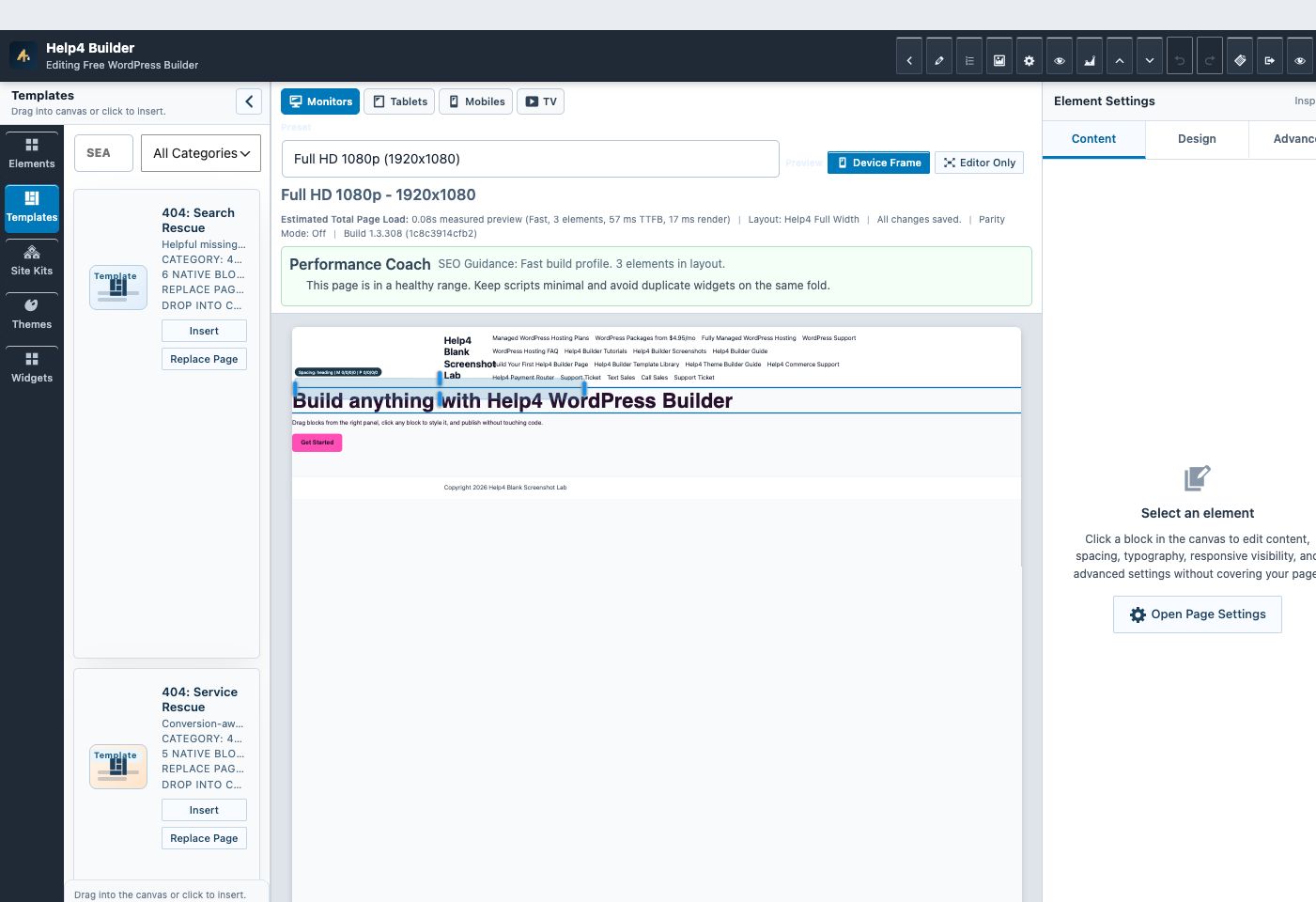
Screen 6
Builder Studio
Use the live page frame, element library, template library, inspector, responsive controls, performance guidance, and save state in one workspace.
Confirm: the page title, selected item, plugin version, and intended responsive view match the task.
Watch the real workflow
Watch the clicks before making the change.
Use the narrated walkthrough first, then follow the written steps and verification checks on this page.
Lesson 1
Find and Open Help4 Builder
Open the correct page, recognize the Studio workspace, select nested elements, and find page recovery controls.
Read the complete transcript
- Open Builder Pages
Start in WordPress and choose Help4 Builder, then Builder Pages. Find the page you want and open it in Studio. This avoids editing the wrong WordPress object or template.
- Recognize Studio
Studio has three working areas. Elements and templates are on the left, your live page is in the center, and the selected element settings appear on the right.
- Use Navigator
When a page is busy, open Navigator. Select the exact section, heading, button, or image by name instead of trying to click through overlapping content.
- Know Your Recovery Controls
Before a larger change, open Page Settings and confirm the page mode and history controls. You now know where to recover without rebuilding the page.
Healthy first run
A fresh install should show the same core screens.
Do not turn on every module just because it exists. The first job is confirming the plugin loaded cleanly and the builder can open a safe draft page.
Settings dashboard
This proves the plugin loaded and gives the site owner one control room.
Builder Pages
This keeps the first editing step obvious and avoids digging through WordPress menus.
Builder Studio
This proves the visual builder, responsive controls, and element library are ready.
Guided walkthrough
Make one verified change at a time.
Each step includes the action, why it belongs in this order, and the checkpoint to verify before moving forward.
-
Download the current ZIP
Use the public latest.zip package and keep it zipped for WordPress upload.
Why nowStarting from a confirmed target prevents a correct edit from being applied to the wrong page, template, product, or responsive view.
Done whenThe download the current zip result is visible, remains after reselecting the item, and has not changed unrelated content or styling.
-
Upload in WordPress
Go to Plugins, Add New, Upload Plugin, choose the ZIP, install, and activate.
Why nowCompleting and checking this step creates a known-good checkpoint before the next control changes the page state again.
Done whenThe upload in wordpress result is visible, remains after reselecting the item, and has not changed unrelated content or styling.
-
Download the theme ZIP separately
WordPress.org treats plugins and themes as separate packages. If Help4 Blank is missing, download help4-blank.zip from /help4-blank/help4-blank.zip and install it under Appearance > Themes. The public manifest lives at /help4-blank/manifest.json.
Why nowCompleting and checking this step creates a known-good checkpoint before the next control changes the page state again.
Done whenThe download the theme zip separately result is visible, remains after reselecting the item, and has not changed unrelated content or styling.
-
Use the blank theme path
Help4 Blank is the clean shell; Builder Suite controls the pages, templates, icons, and modules.
Why nowCompleting and checking this step creates a known-good checkpoint before the next control changes the page state again.
Done whenThe use the blank theme path result is visible, remains after reselecting the item, and has not changed unrelated content or styling.
-
Check Settings first
Confirm support links, module state, release channel, and update information.
Why nowCompleting and checking this step creates a known-good checkpoint before the next control changes the page state again.
Done whenThe check settings first result is visible, remains after reselecting the item, and has not changed unrelated content or styling.
-
Open Builder Pages
Choose a draft or test page and launch Builder Studio before editing live pages.
Why nowCompleting and checking this step creates a known-good checkpoint before the next control changes the page state again.
Done whenThe open builder pages result is visible, remains after reselecting the item, and has not changed unrelated content or styling.
-
Preview before publish
Save the draft, preview the front end, and check mobile before customers see it.
Why nowThe final verification separates an editor preview from a result that is actually saved, responsive, interactive, and ready for visitors.
Done whenThe preview before publish result is visible, remains after reselecting the item, and has not changed unrelated content or styling.
How to know it worked
Verify the edit in Studio and on the real page.
A successful edit stays visible when the element is reselected, matches the intended responsive view, survives publish, and appears on the public URL without clipping or lost styling.
Studio preview
Reselect the element and confirm the saved value and visual result are still present.
Responsive preview
Check desktop, tablet, 390px, and 360px widths for overflow, squeezed controls, and inherited values.
Public page
Open the public route in a new tab after publishing and confirm content, interactions, assets, and spacing.
Recovery
If the result is wrong, stop editing and use History or a known-good revision instead of rebuilding the page.
Avoid the expensive mistakes
Stop when the page stops behaving predictably.
More edits do not repair a bad state. Preserve the evidence, return to a known revision, and reproduce the smallest failing action.
Changing several controls at once
Change one content, design, or responsive value, then confirm it in the preview. A small edit is easier to understand and recover.
Editing the wrong layer
Use Navigator and read the inspector heading. Deleting a parent section can remove every child even when the selected text or image looked harmless.
Checking only desktop
Review tablet, 390px, and 360px before publish. Width, gap, padding, type, alignment, controls, and menus can inherit differently.
Publishing before values persist
Reselect the element and reopen the responsive view. If the value disappears or another tab has a newer revision, reconcile it before publishing.
Continue learning
Use the next guide that matches the work in front of you.
The full tutorial hub remains available without repeating dozens of unrelated cards on this page.
Start here
Install and setup
Download the ZIP, activate Builder Suite, understand the blank-theme path, and run the first clean check.
First page
Build a page safely
Open Builder Pages, launch Studio, build structure first, check mobile, then publish or hand it to Help4.
Editor controls
Know which tab changes what
Use Content for information, Design for appearance and responsive values, and Advanced for identity, attributes, visibility, and motion.
Recovery
Edit without losing work
Replace media safely, recognize stale drafts, and restore a known-good page snapshot from Page Settings History.
Responsive
Control every viewport
Set spacing, widths, columns, alignment, and typography independently for desktop, tablet, and mobile.
Templates
Choose a starter
Pick a starter spec by page job: service, product, support, recent work, local SEO, launch, or checkout recovery.
Need help with this step?
Send Help4 the page, screenshot, or site goal.
Include the URL, what you are trying to build, what looks wrong, and whether this is a draft, staging site, or live customer page.