
Help4 Builder Accessibility Audit
Before changing settings
Confirm the site, user state, current version, and recovery path.
Open the exact site and feature named in the request, record its current behavior, and keep a bounded recovery option. Change one setting group at a time so the verification can identify what actually changed.
Target
Record the domain, URL or admin screen, user role, viewport, and specific outcome before changing configuration.
Current state
Capture the relevant version, enabled module, existing value, and a fresh public or runtime check.
Recovery
Keep the previous immutable package, WordPress revision, export, or narrow data snapshot needed for this feature.
Privacy
Keep credentials, private customer data, payment secrets, nonces, and protected files out of screenshots and support reports.
Visual orientation
Match the screen before following the steps.
Open each image at full size. The numbered notes explain what the screen controls and what to confirm before changing customer content.
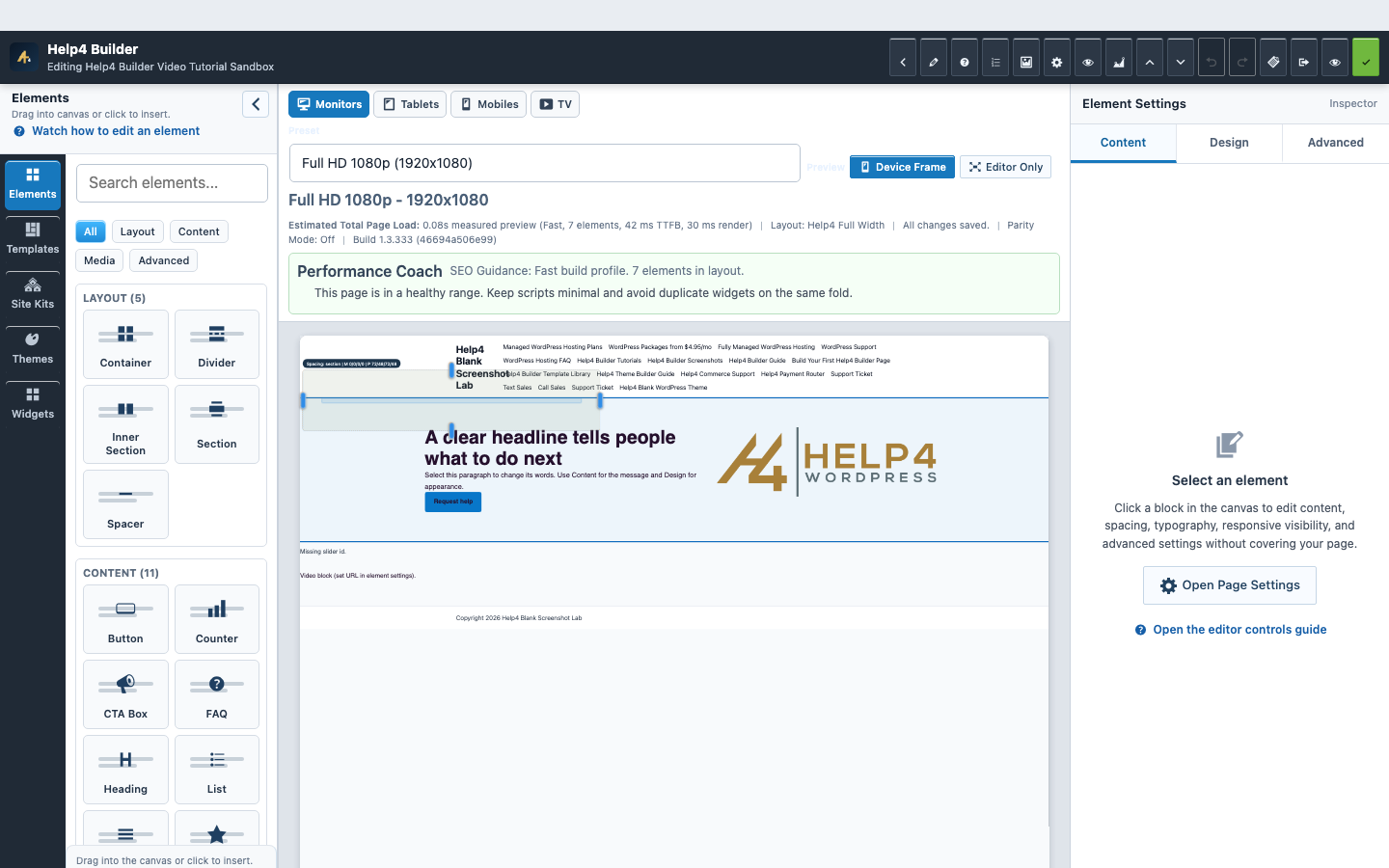
Screen 1
Current Studio workspace
See the element library, device controls, live page frame, inspector, performance guidance, and save state together.
Confirm: the page title, selected item, plugin version, and intended responsive view match the task.
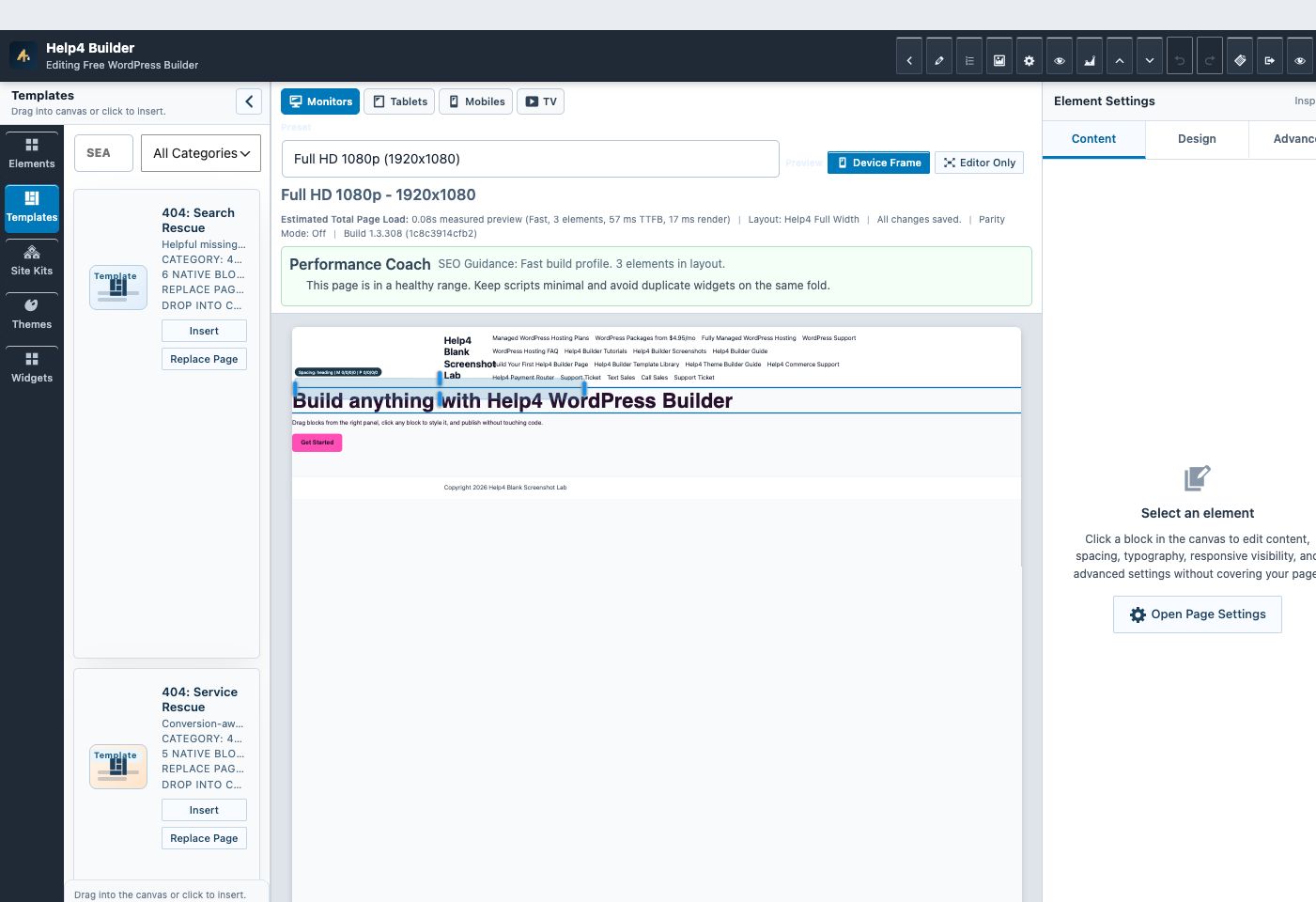
Screen 2
Builder Studio
Use the live page frame, element library, template library, inspector, responsive controls, performance guidance, and save state in one workspace.
Confirm: the page title, selected item, plugin version, and intended responsive view match the task.
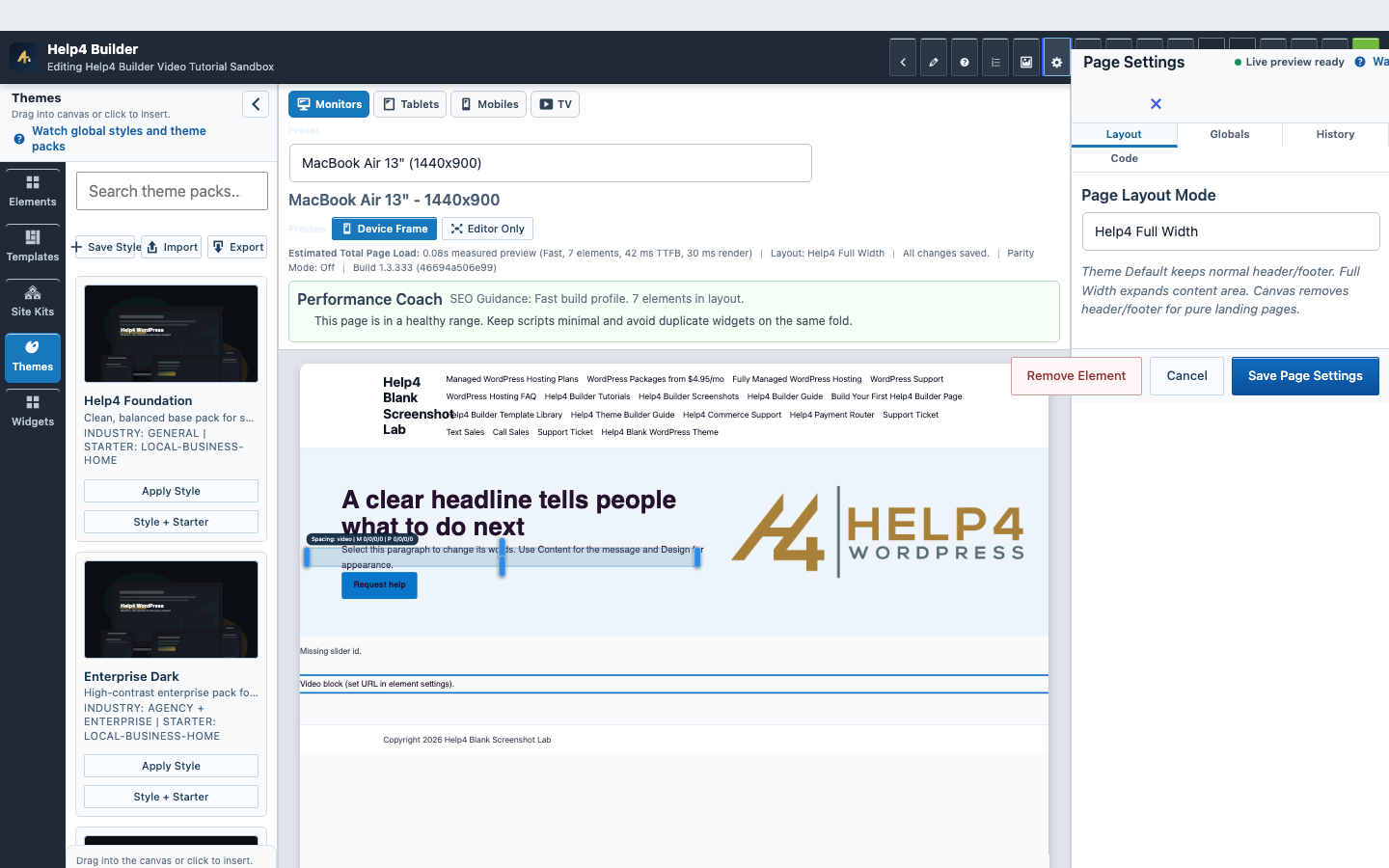
Screen 3
Page Settings and recovery
Confirm page-level layout, history, preview, and recovery controls before a larger edit.
Confirm: the page title, selected item, plugin version, and intended responsive view match the task.
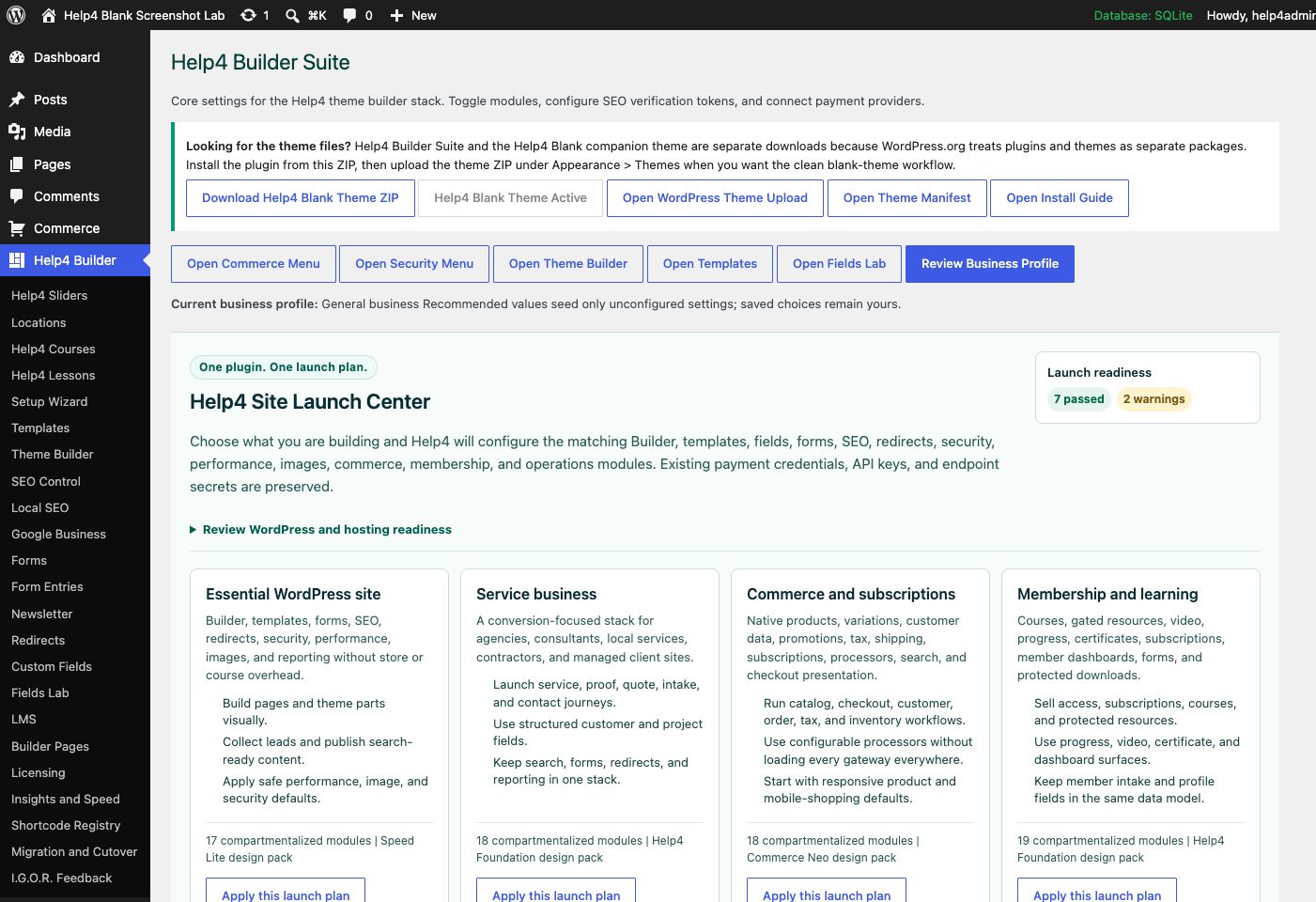
Screen 4
Settings and launch center
Choose a launch plan, confirm modules, download Help4 Blank, review readiness, and keep the site configuration in one place.
Confirm: the page title, selected item, plugin version, and intended responsive view match the task.
Watch the real workflow
Watch the clicks before making the change.
Use the narrated walkthrough first, then follow the written steps and verification checks on this page.
Lesson 48
Accessibility, Keyboard, Contrast, and Reduced Motion
Audit Builder pages for meaningful structure, complete keyboard operation, visible focus, sufficient contrast, and calm motion alternatives.
Read the complete transcript
- Check Structure and Names
Start with one descriptive page heading, a logical heading sequence, landmarks, real lists, useful link and button names, form labels, image alternatives, and an accurate page title. Structure should describe the content without depending on color, position, or a screenshot of text.
- Use the Entire Page by Keyboard
Move through the public page with Tab and Shift Tab, then operate menus, disclosures, sliders, forms, dialogs, media, and custom controls with their expected keys. Focus must remain visible, follow a useful order, avoid traps, and return to the invoking control after a dialog or menu closes.
- Verify Contrast and Responsive Reflow
Check text, icons, controls, focus indicators, errors, placeholders, disabled states, and text placed on images or colored panels. Zoom and inspect narrow widths without losing content or forcing horizontal document scrolling. A large desktop contrast value does not excuse faint body text or controls on another state.
- Respect Motion Preferences
Use motion only to support understanding, provide pause or manual controls where needed, and keep duration, delay, easing, and triggers editable. Under reduced motion, remove ambient movement, parallax, automatic transitions, and decorative video where practical while preserving every message and action. Test both preference states in Studio and public output.
Lesson 16
Sliders, Motion, and Video Fallbacks
Configure accessible sliders and video with responsive sizing, reduced motion, HLS primary playback, and dependable fallbacks.
Read the complete transcript
- Configure the Slider Source
Select the Slider element and choose saved slides or approved dynamic content. Set a deliberate order, limit, image fit, and responsive height. Keep keyboard, swipe, arrows, dots, and a pause control available whenever the slider advances or changes content automatically.
- Use Motion with Restraint
Choose the transition, duration, delay, easing, and optional image motion for a clear purpose. Avoid rapid autoplay or movement that hides information before it can be read. Reduced-motion visitors should receive a stable version without losing the slide content or controls.
- Build the Video Fallback Chain
For video, set HLS as the primary stream when available, then provide a compatible MP4, WebM, or media-library fallback. Add a poster and a separate failure image. Configure controls, preload, fit, title, mute, loop, and autoplay according to the video's actual role.
- Verify Playback and Layout
Test desktop, tablet, and mobile with normal and reduced motion. Check HLS support, file fallback, blocked autoplay, poster loading, failure image, captions where speech matters, keyboard controls, focal framing, and page containment. A working administrator preview is not the final playback test.
Accessibility release gate
Test the complete task, not only an automated score.
Automated checks can find useful patterns, but a real audit also follows the page in reading order, completes interactions by keyboard, reviews responsive states, and confirms that every message survives without color or motion.
Meaningful structure
Use one descriptive page heading, a logical heading sequence, landmarks, lists, labels, and controls that match their real purpose.
Complete keyboard path
Reach and operate navigation, disclosures, forms, dialogs, media, sliders, checkout, and other custom controls with visible focus and no trap.
Readable visual states
Check text, controls, focus, errors, disabled states, and content on images for sufficient contrast at every responsive state.
Equivalent calm experience
Honor reduced-motion preferences without removing information, actions, progress, or a usable media fallback.
Guided walkthrough
Make one verified change at a time.
Each step includes the action, why it belongs in this order, and the checkpoint to verify before moving forward.
-
Review the document outline
Confirm the title, one H1, section heading order, landmarks, real lists, link purpose, button names, form labels, and image alternatives.
Why nowStarting from a confirmed target prevents a correct edit from being applied to the wrong page, template, product, or responsive view.
Done whenThe review the document outline result is visible, remains after reselecting the item, and has not changed unrelated content or styling.
-
Navigate without a pointer
Use Tab and Shift Tab through the public page, then operate menus, accordions, forms, dialogs, sliders, and media with their expected keys.
Why nowCompleting and checking this step creates a known-good checkpoint before the next control changes the page state again.
Done whenThe navigate without a pointer result is visible, remains after reselecting the item, and has not changed unrelated content or styling.
-
Inspect focus and status messages
Verify focus is always visible, follows a useful order, returns after overlays close, and reaches validation, success, loading, and error messages.
Why nowCompleting and checking this step creates a known-good checkpoint before the next control changes the page state again.
Done whenThe inspect focus and status messages result is visible, remains after reselecting the item, and has not changed unrelated content or styling.
-
Check contrast and noncolor meaning
Measure text and control states on their real backgrounds and confirm errors, selection, charts, and instructions do not depend on color alone.
Why nowCompleting and checking this step creates a known-good checkpoint before the next control changes the page state again.
Done whenThe check contrast and noncolor meaning result is visible, remains after reselecting the item, and has not changed unrelated content or styling.
-
Test zoom and responsive reflow
Review desktop, tablet, 390px, 360px, and browser zoom for clipping, lost controls, unreadable content, and horizontal document scrolling.
Why nowCompleting and checking this step creates a known-good checkpoint before the next control changes the page state again.
Done whenThe test zoom and responsive reflow result is visible, remains after reselecting the item, and has not changed unrelated content or styling.
-
Test normal and reduced motion
Verify timing, autoplay, parallax, sliders, ambient animation, and background media in both preference states, including pause or manual controls where needed.
Why nowCompleting and checking this step creates a known-good checkpoint before the next control changes the page state again.
Done whenThe test normal and reduced motion result is visible, remains after reselecting the item, and has not changed unrelated content or styling.
-
Repeat on the public page
Publish only after Studio checks pass, then repeat the critical keyboard, screen-size, media, form, and motion paths on the real anonymous URL.
Why nowThe final verification separates an editor preview from a result that is actually saved, responsive, interactive, and ready for visitors.
Done whenThe repeat on the public page result is visible, remains after reselecting the item, and has not changed unrelated content or styling.
Release check
Test the real public or member outcome, not only the settings screen.
Reopen the saved setting, run the intended workflow in the correct visitor state, test desktop and phone behavior where a frontend surface exists, and inspect fresh browser or PHP errors from the same attempt.
Persistence
The saved values remain correct after reload and do not overwrite newer settings from another session.
Public behavior
The intended visitor can complete the workflow and an unintended visitor cannot access protected output.
Responsive behavior
Controls, text, tables, media, dialogs, and focus stay visible and usable at 768px, 390px, and 360px.
Fresh evidence
The final request has the expected status, output, cache state, and no new related console or PHP error.
Common questions
Answers for the decisions that block this setup most often.
Does a perfect automated score prove the page is accessible?
No. Automated tools find only part of the problem; keyboard operation, reading order, clear language, meaningful alternatives, and complete user tasks still require human review.
Should focus outlines be removed to match the design?
No. Focus must remain clearly visible; style it to fit the design while preserving a strong, consistent indicator.
Does reduced motion mean every transition must disappear?
It means unnecessary or potentially harmful motion should be removed or simplified while every message, control, and task remains available.
Continue learning
Use the next guide that matches the work in front of you.
The full tutorial hub remains available without repeating dozens of unrelated cards on this page.
Start here
Install and setup
Download the ZIP, activate Builder Suite, understand the blank-theme path, and run the first clean check.
First page
Build a page safely
Open Builder Pages, launch Studio, build structure first, check mobile, then publish or hand it to Help4.
Editor controls
Know which tab changes what
Use Content for information, Design for appearance and responsive values, and Advanced for identity, attributes, visibility, and motion.
Recovery
Edit without losing work
Replace media safely, recognize stale drafts, and restore a known-good page snapshot from Page Settings History.
Responsive
Control every viewport
Set spacing, widths, columns, alignment, and typography independently for desktop, tablet, and mobile.
Templates
Choose a starter
Pick a starter spec by page job: service, product, support, recent work, local SEO, launch, or checkout recovery.
Need a second set of eyes?
Send one complete, privacy-safe support record.
Include the affected URL or admin screen, current Builder version, user state, exact steps, expected result, actual result, and one screenshot or fresh error when available.