
Help4 Builder Module Controls
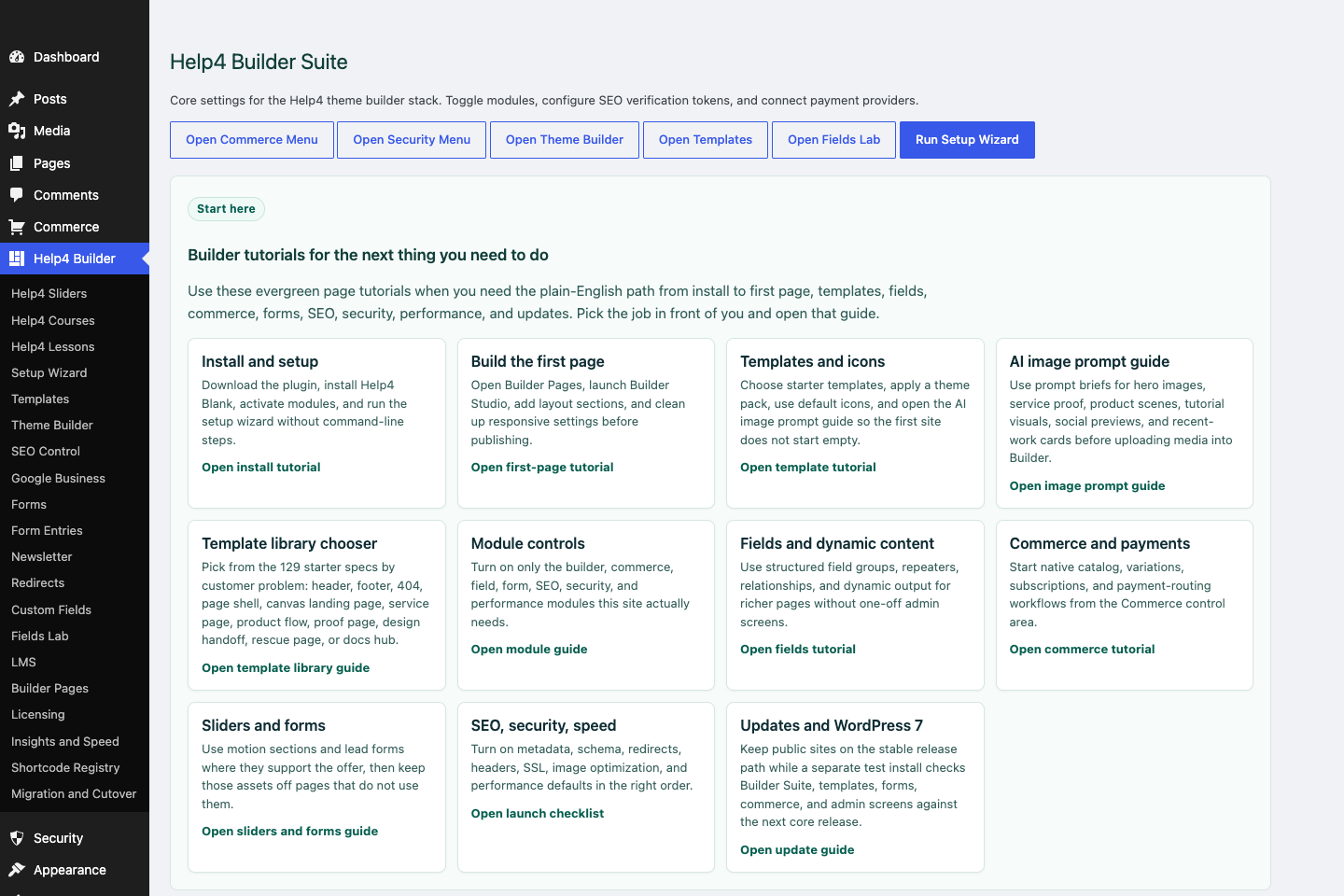
Settings dashboard
Confirm modules, setup wizard state, support links, release channel, and the main Builder Suite shortcuts before building.
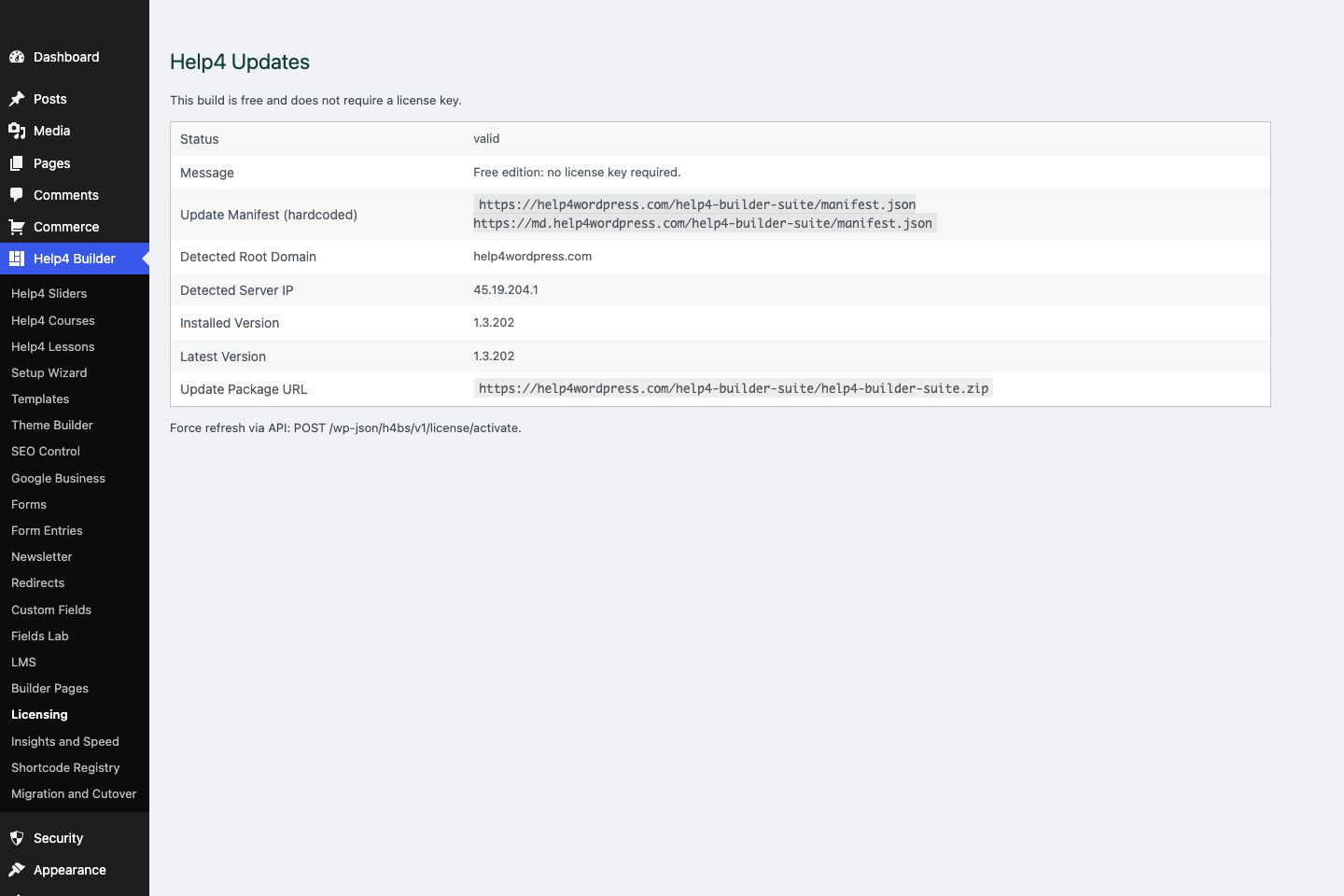
Updates
Confirm the installed version, free update status, manifest URLs, beta/stable channel behavior, and package checks.
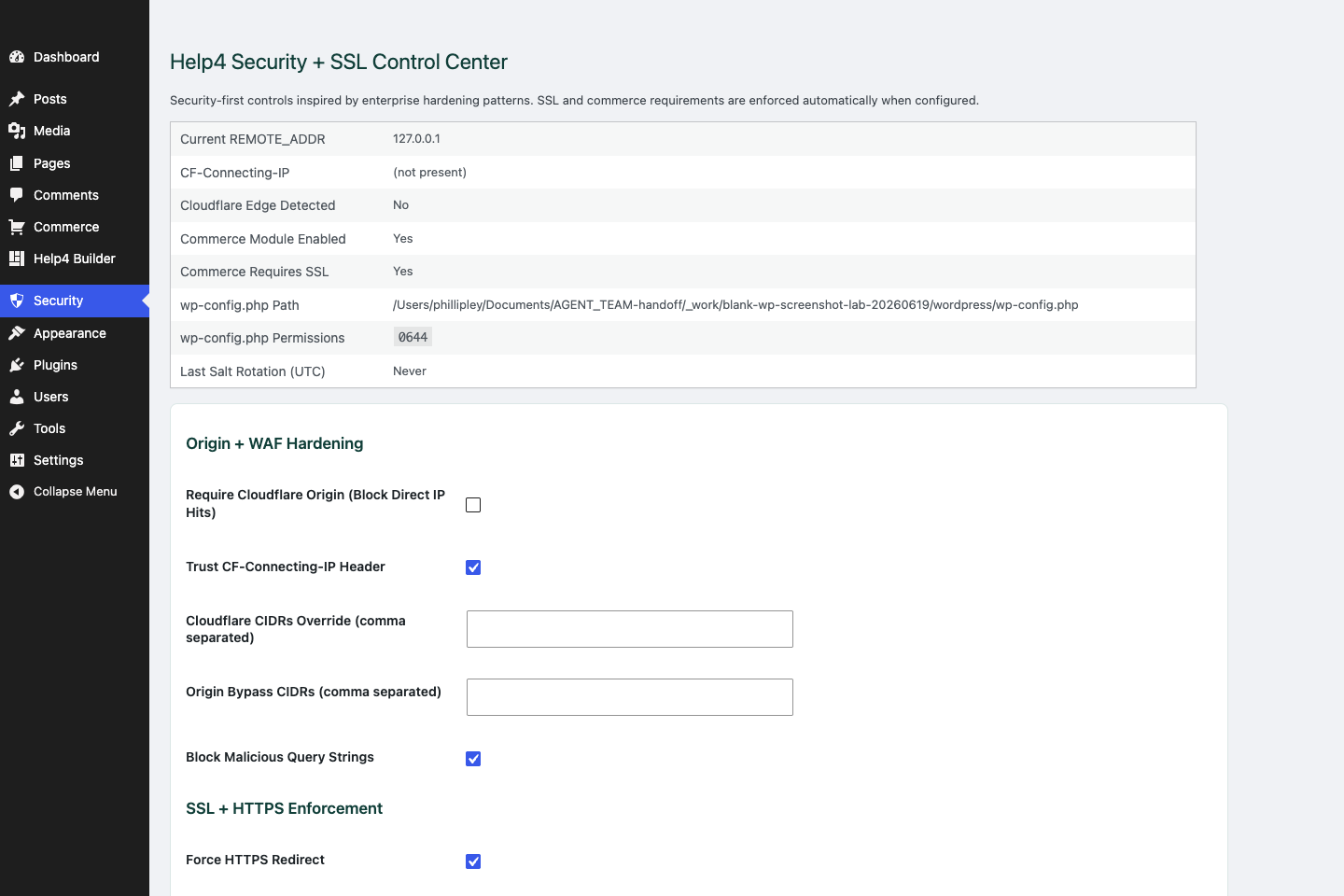
Security
Review SSL, headers, login hardening, XML-RPC controls, checkout safety, and production hardening settings.
Module discipline
Do not enable everything just because it exists.
A brochure site, catalog, support portal, and landing-page stack need different modules. Keep the enabled set honest.
Builder and templates
Enable for visual editing, starters, global templates, and blank-theme launch work.
Fields and commerce
Enable when content repeats or product/catalog data needs a real structure.
SEO, security, performance
Enable for metadata, redirects, readability, SSL, headers, images, and launch checks.
Step
Start in Settings
Confirm which major systems are currently enabled.
Step
Match modules to the site goal
Builder, fields, commerce, forms, SEO, security, and performance should each have a reason.
Step
Keep unused features quiet
Leave modules off when the site does not need their admin pages or frontend assets.
Step
Re-check before launch
A module used during build may not need to stay active for a simple finished site.
Step
Document the choices
Leave notes so the next editor knows why the site is configured this way.
Start here
Install and setup
Download the ZIP, activate Builder Suite, understand the blank-theme path, and run the first clean check.
First page
Build a page safely
Open Builder Pages, launch Studio, build structure first, check mobile, then publish or hand it to Help4.
Templates
Choose a starter
Pick a starter spec by page job: service, product, support, recent work, local SEO, launch, or checkout recovery.
Theme layer
Headers and footers
Use Theme Builder for global headers, footers, 404s, page shells, canvas pages, popups, and conditions.
Fields
Structured content
Use fields when content repeats: FAQs, service areas, specs, team members, galleries, relationships, and product data.
Commerce
Products and payments
Plan catalog data, variations, subscriptions, checkout context, and payment routing before launch.
Capture leads
Forms and sliders
Use forms and motion only where they support the page goal and do not load extra assets everywhere.
Launch QA
SEO, speed, security
Check metadata, schema, readability, AdSense-style quality, Analytics intent, SSL, headers, images, and mobile.
Proof
Website Snapshot
Turn public URLs into safe website screenshots for recent work, migrations, support notes, and launch recaps.
Release safety
Updates
Use stable live packages and md beta testing to keep Builder Suite ready for the next WordPress line.
Need help with this step?
Send Help4 the page, screenshot, or site goal.
Include the URL, what you are trying to build, what looks wrong, and whether this is a draft, staging site, or live customer page.