
Help4 Insights, Site Health and Shortcode Diagnostics
Before changing settings
Confirm the site, user state, current version, and recovery path.
Open the exact site and feature named in the request, record its current behavior, and keep a bounded recovery option. Change one setting group at a time so the verification can identify what actually changed.
Target
Record the domain, URL or admin screen, user role, viewport, and specific outcome before changing configuration.
Current state
Capture the relevant version, enabled module, existing value, and a fresh public or runtime check.
Recovery
Keep the previous immutable package, WordPress revision, export, or narrow data snapshot needed for this feature.
Privacy
Keep credentials, private customer data, payment secrets, nonces, and protected files out of screenshots and support reports.
Visual orientation
Match the screen before following the steps.
Open each image at full size. The numbered notes explain what the screen controls and what to confirm before changing customer content.
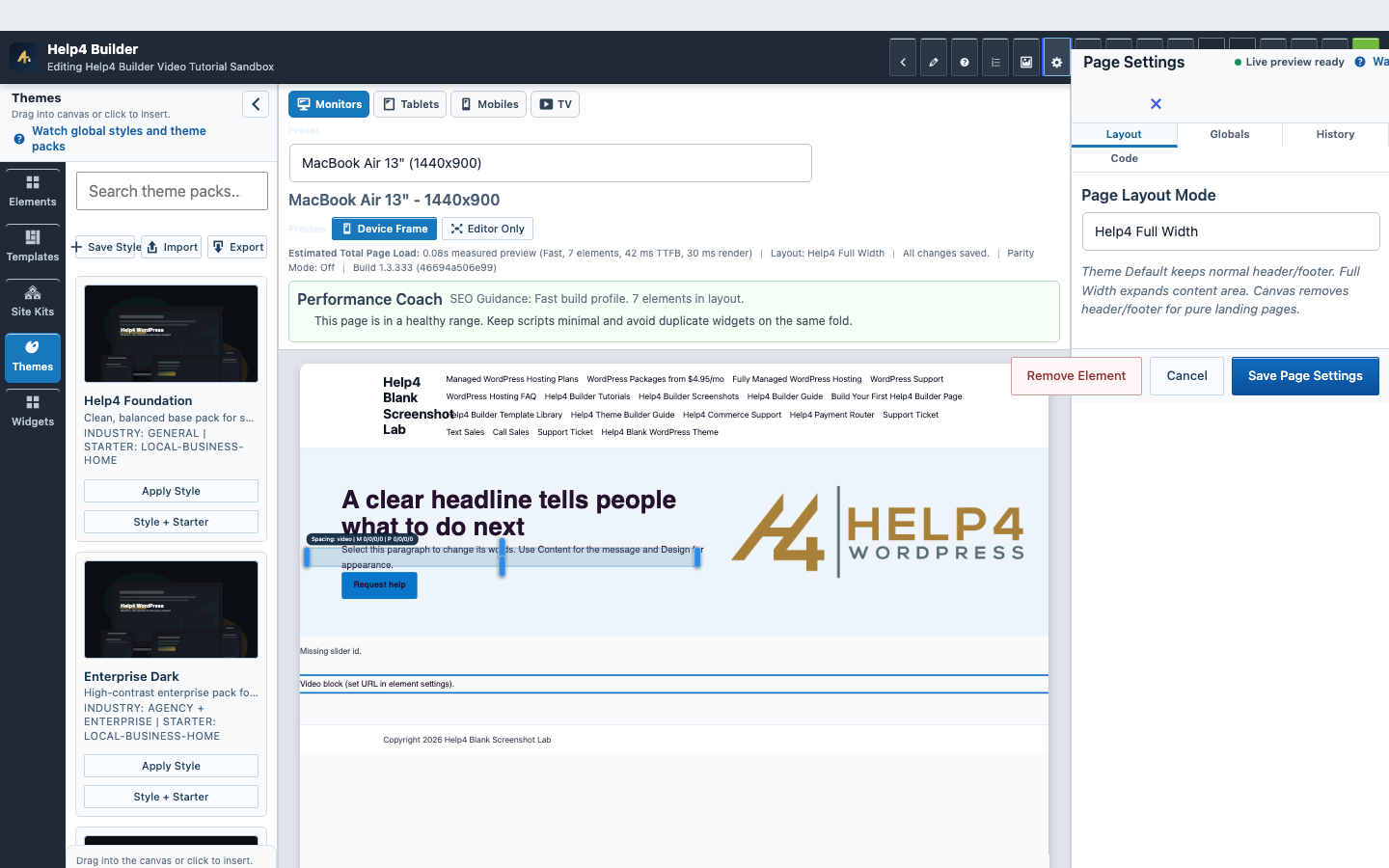
Screen 1
Page Settings and recovery
Confirm page-level layout, history, preview, and recovery controls before a larger edit.
Confirm: the page title, selected item, plugin version, and intended responsive view match the task.
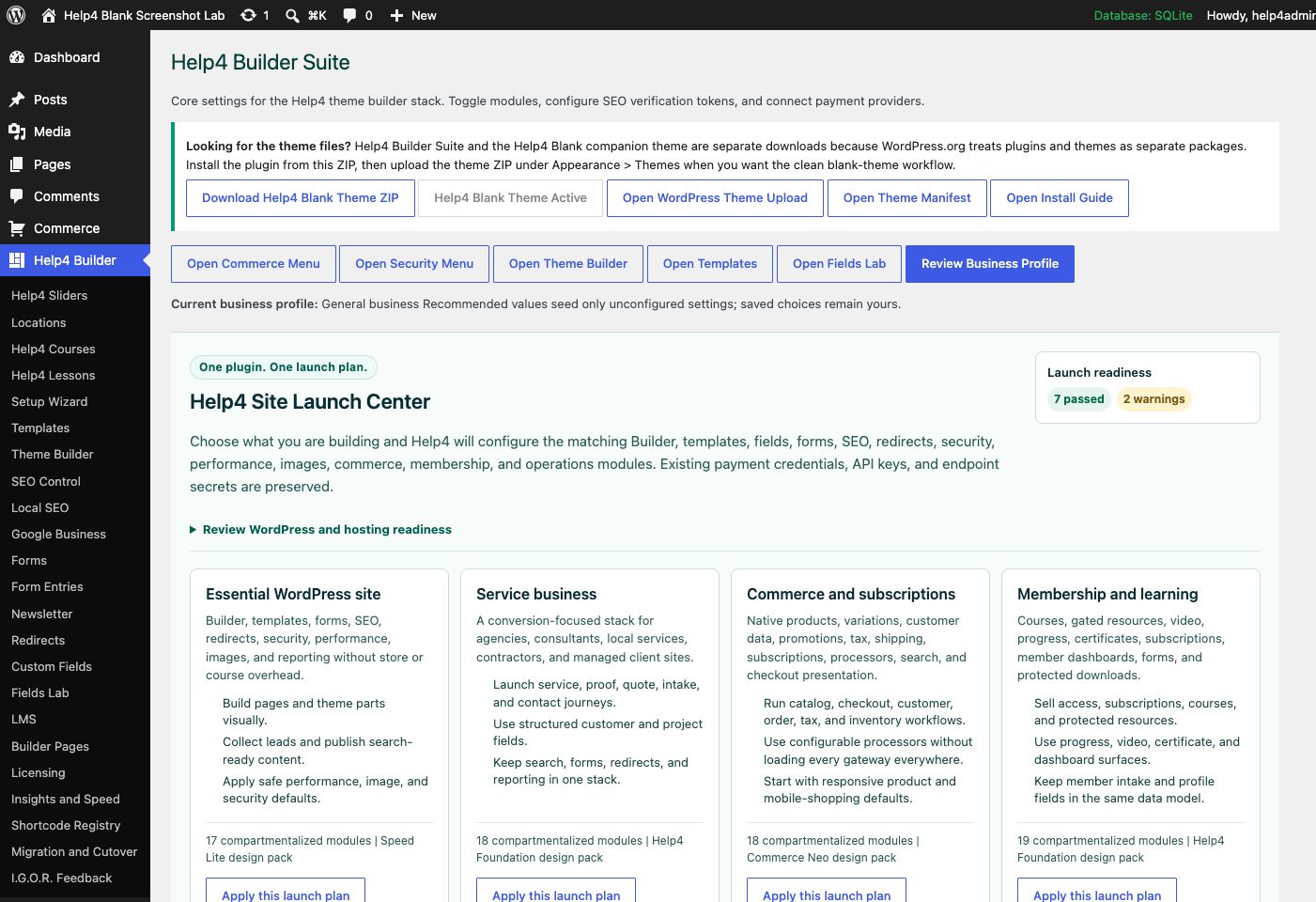
Screen 2
Settings and launch center
Choose a launch plan, confirm modules, download Help4 Blank, review readiness, and keep the site configuration in one place.
Confirm: the page title, selected item, plugin version, and intended responsive view match the task.
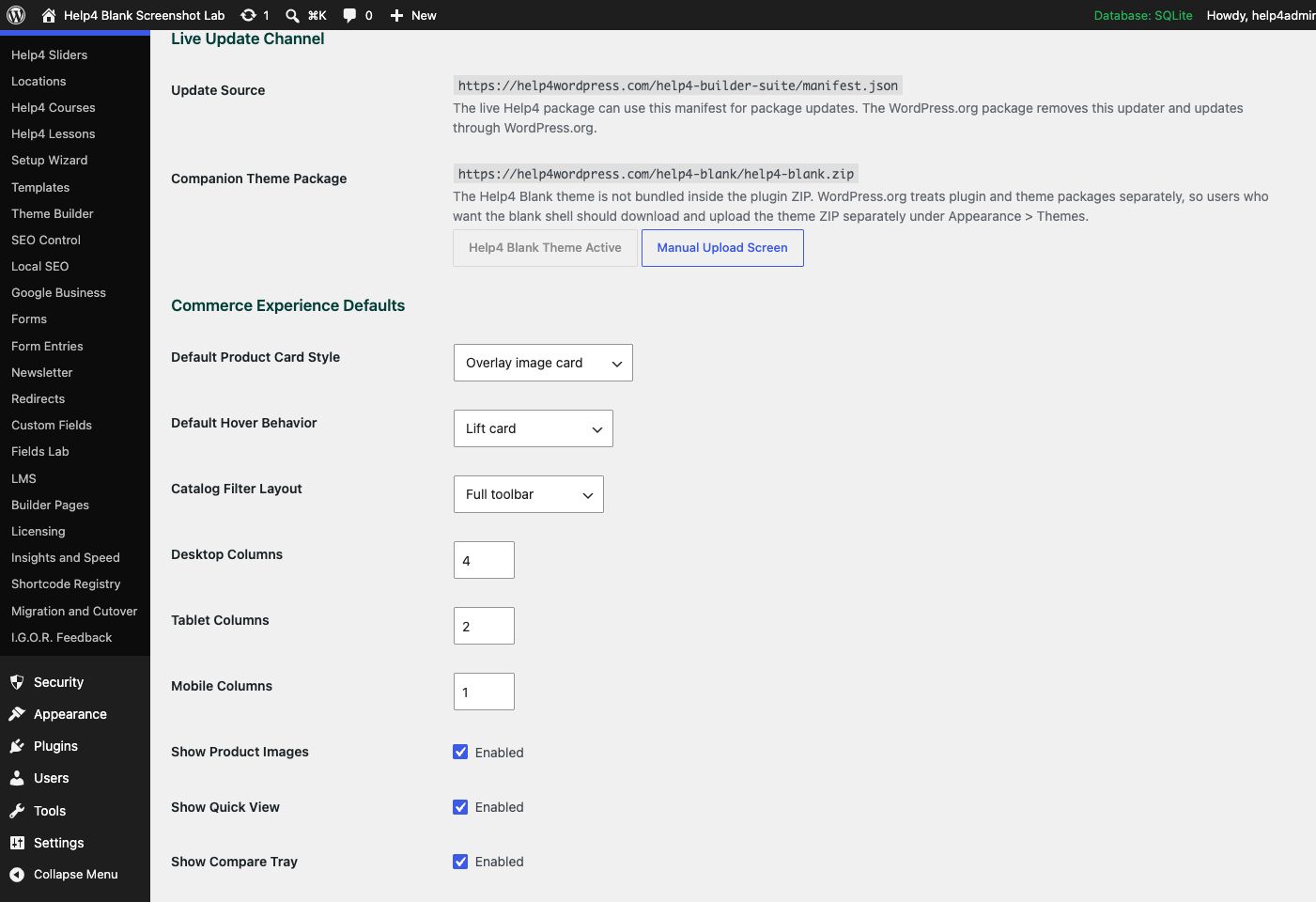
Screen 3
Updates
Confirm the installed version, free update status, manifest URLs, beta or stable channel behavior, and package checks.
Confirm: the page title, selected item, plugin version, and intended responsive view match the task.
Watch the real workflow
Watch the clicks before making the change.
Use the narrated walkthrough first, then follow the written steps and verification checks on this page.
Lesson 24
Insights, Logs, and I.G.O.R. Diagnostics
Turn a vague Builder problem into a privacy-safe report with one reproducible action, fresh evidence, and a clear expected result.
Read the complete transcript
- Stop and Define the Failure
When an edit starts removing content, losing styles, or returning an error, stop repeated changes. Record one affected URL or admin screen, page or template ID, selected element, user role, viewport, exact action, expected result, actual result, and the time of the attempt.
- Gather Fresh Evidence
Use Insights and fresh browser or PHP logs from the same reproduction. Capture the response status, one relevant console message, active versions, enabled modules, theme, and a screenshot showing the complete control and result. Old errors from another request can send diagnosis in the wrong direction.
- Protect Private Information
Review what I.G.O.R. will send before submission. Remove passwords, nonces, license keys, payment secrets, application passwords, private messages, database content, raw customer records, and tracking details. Include only the smallest environment and reproduction evidence needed to understand the issue.
- Submit One Connected Report
Send one complete report, keep follow-up evidence on the same support record, and use History or the known recovery path when appropriate. After a fix, repeat the original action and verify Studio, public output, desktop, mobile, and fresh logs before closing the issue.
Lesson 12
Commerce Products, Quantity, and Checkout
Create a native product, configure purchase and quantity rules, and verify the checkout and order path.
Read the complete transcript
- Open Native Products
Open Commerce, then Products. Native Catalog mode lets you create simple, service, digital, booking, variable, and subscription products without adding a separate store plugin.
- Describe the Product
Set the name, SKU, status, price, stock, description, image, tax behavior, fulfillment, and customer requirements. Use variants when options need their own price, stock, image, or SKU.
- Set Quantity Rules
Turn off customer quantity when a configured package must stay one unit per cart line. Customers can still add another separately. Use the order-limit option only when the whole order may contain one.
- Test the Full Order
Run a test from product display through cart, payment routing, confirmation, inventory, customer record, and order status. Verify both normal quantity products and fixed one-per-line products.
Evidence order
Separate a configuration warning from a reproducible public failure.
Record versions and affected routes, run the narrow check, then verify the actual public behavior and fresh logs before changing settings.
Version inventory
Record WordPress, active theme, Builder, addon, PHP, and database versions before diagnosis.
Route and registry health
Confirm required post types, REST routes, and Help4 shortcode tags exist and retain their expected owners.
Page evidence
Compare the affected public URL, Studio preview, response status, console, PHP log, and performance estimate.
After-change proof
Repeat the same checks after the narrow correction and preserve the before/after result.
Guided walkthrough
Make one verified change at a time.
Each step includes the action, why it belongs in this order, and the checkpoint to verify before moving forward.
-
Define the failing behavior
Write the exact URL, user state, viewport, action, expected result, and actual result before opening diagnostics.
Why nowStarting from a confirmed target prevents a correct edit from being applied to the wrong page, template, product, or responsive view.
Done whenThe define the failing behavior result is visible, remains after reselecting the item, and has not changed unrelated content or styling.
-
Record the runtime inventory
Capture core, PHP, database, theme, plugin, and Builder build versions without assuming the updater screen is current.
Why nowCompleting and checking this step creates a known-good checkpoint before the next control changes the page state again.
Done whenThe record the runtime inventory result is visible, remains after reselecting the item, and has not changed unrelated content or styling.
-
Run Help4 health checks
Open Insights and review module, route, table, shortcode, and integration checks for the affected feature.
Why nowCompleting and checking this step creates a known-good checkpoint before the next control changes the page state again.
Done whenThe run help4 health checks result is visible, remains after reselecting the item, and has not changed unrelated content or styling.
-
Inspect shortcode ownership
Confirm every used h4_ shortcode is registered by the expected Help4 module and has not been replaced by another plugin.
Why nowCompleting and checking this step creates a known-good checkpoint before the next control changes the page state again.
Done whenThe inspect shortcode ownership result is visible, remains after reselecting the item, and has not changed unrelated content or styling.
-
Compare page cost and assets
Use the estimate as guidance, then inspect real network requests, rendered widgets, cache headers, and public response time.
Why nowCompleting and checking this step creates a known-good checkpoint before the next control changes the page state again.
Done whenThe compare page cost and assets result is visible, remains after reselecting the item, and has not changed unrelated content or styling.
-
Read fresh logs
Reproduce once, then inspect the new PHP and browser entries rather than relying on old unrelated warnings.
Why nowCompleting and checking this step creates a known-good checkpoint before the next control changes the page state again.
Done whenThe read fresh logs result is visible, remains after reselecting the item, and has not changed unrelated content or styling.
-
Retest the same matrix
After the correction, repeat the original route, state, viewport, interaction, and log checks before closing the issue.
Why nowThe final verification separates an editor preview from a result that is actually saved, responsive, interactive, and ready for visitors.
Done whenThe retest the same matrix result is visible, remains after reselecting the item, and has not changed unrelated content or styling.
Release check
Test the real public or member outcome, not only the settings screen.
Reopen the saved setting, run the intended workflow in the correct visitor state, test desktop and phone behavior where a frontend surface exists, and inspect fresh browser or PHP errors from the same attempt.
Persistence
The saved values remain correct after reload and do not overwrite newer settings from another session.
Public behavior
The intended visitor can complete the workflow and an unintended visitor cannot access protected output.
Responsive behavior
Controls, text, tables, media, dialogs, and focus stay visible and usable at 768px, 390px, and 360px.
Fresh evidence
The final request has the expected status, output, cache state, and no new related console or PHP error.
Common questions
Answers for the decisions that block this setup most often.
Is a Builder performance estimate the same as public response time?
No. It is guidance based on layout and feature cost; public timing also depends on hosting, cache, database, network, media, and visitor state.
Why audit reserved shortcodes?
A missing or replaced shortcode can turn dynamic content into blank output or literal shortcode text even when the page layout is intact.
Should old log entries block a release?
Only current reproducible failures should block the release; preserve older entries as context but verify the timestamp and affected request.
Continue learning
Use the next guide that matches the work in front of you.
The full tutorial hub remains available without repeating dozens of unrelated cards on this page.
Start here
Install and setup
Download the ZIP, activate Builder Suite, understand the blank-theme path, and run the first clean check.
First page
Build a page safely
Open Builder Pages, launch Studio, build structure first, check mobile, then publish or hand it to Help4.
Editor controls
Know which tab changes what
Use Content for information, Design for appearance and responsive values, and Advanced for identity, attributes, visibility, and motion.
Recovery
Edit without losing work
Replace media safely, recognize stale drafts, and restore a known-good page snapshot from Page Settings History.
Responsive
Control every viewport
Set spacing, widths, columns, alignment, and typography independently for desktop, tablet, and mobile.
Templates
Choose a starter
Pick a starter spec by page job: service, product, support, recent work, local SEO, launch, or checkout recovery.
Need a second set of eyes?
Send one complete, privacy-safe support record.
Include the affected URL or admin screen, current Builder version, user state, exact steps, expected result, actual result, and one screenshot or fresh error when available.