
Help4 Email Marketing, Newsletters and Drip Campaigns
Before changing settings
Confirm the site, user state, current version, and recovery path.
Open the exact site and feature named in the request, record its current behavior, and keep a bounded recovery option. Change one setting group at a time so the verification can identify what actually changed.
Target
Record the domain, URL or admin screen, user role, viewport, and specific outcome before changing configuration.
Current state
Capture the relevant version, enabled module, existing value, and a fresh public or runtime check.
Recovery
Keep the previous immutable package, WordPress revision, export, or narrow data snapshot needed for this feature.
Privacy
Keep credentials, private customer data, payment secrets, nonces, and protected files out of screenshots and support reports.
Visual orientation
Match the screen before following the steps.
Open each image at full size. The numbered notes explain what the screen controls and what to confirm before changing customer content.
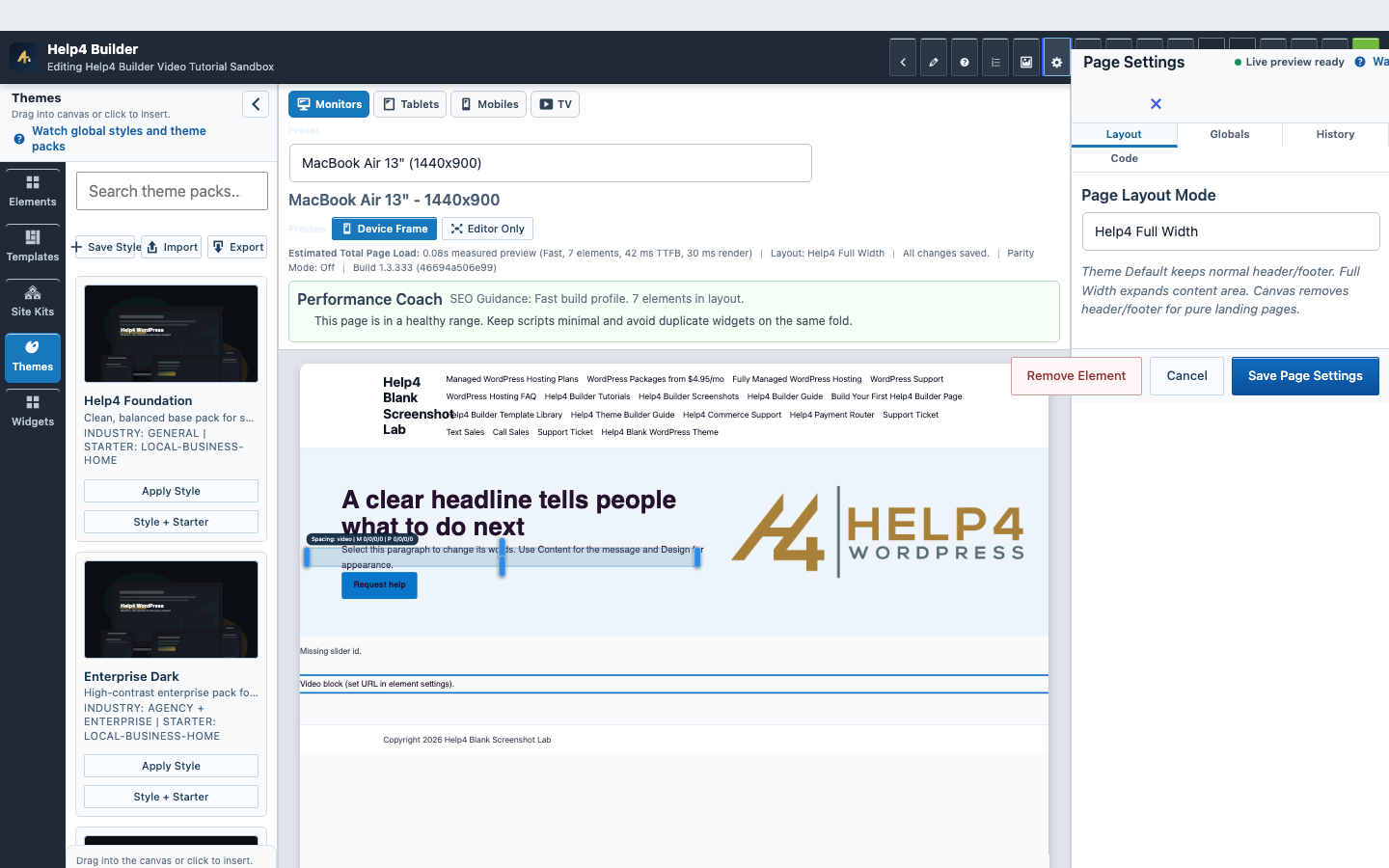
Screen 1
Page Settings and recovery
Confirm page-level layout, history, preview, and recovery controls before a larger edit.
Confirm: the page title, selected item, plugin version, and intended responsive view match the task.
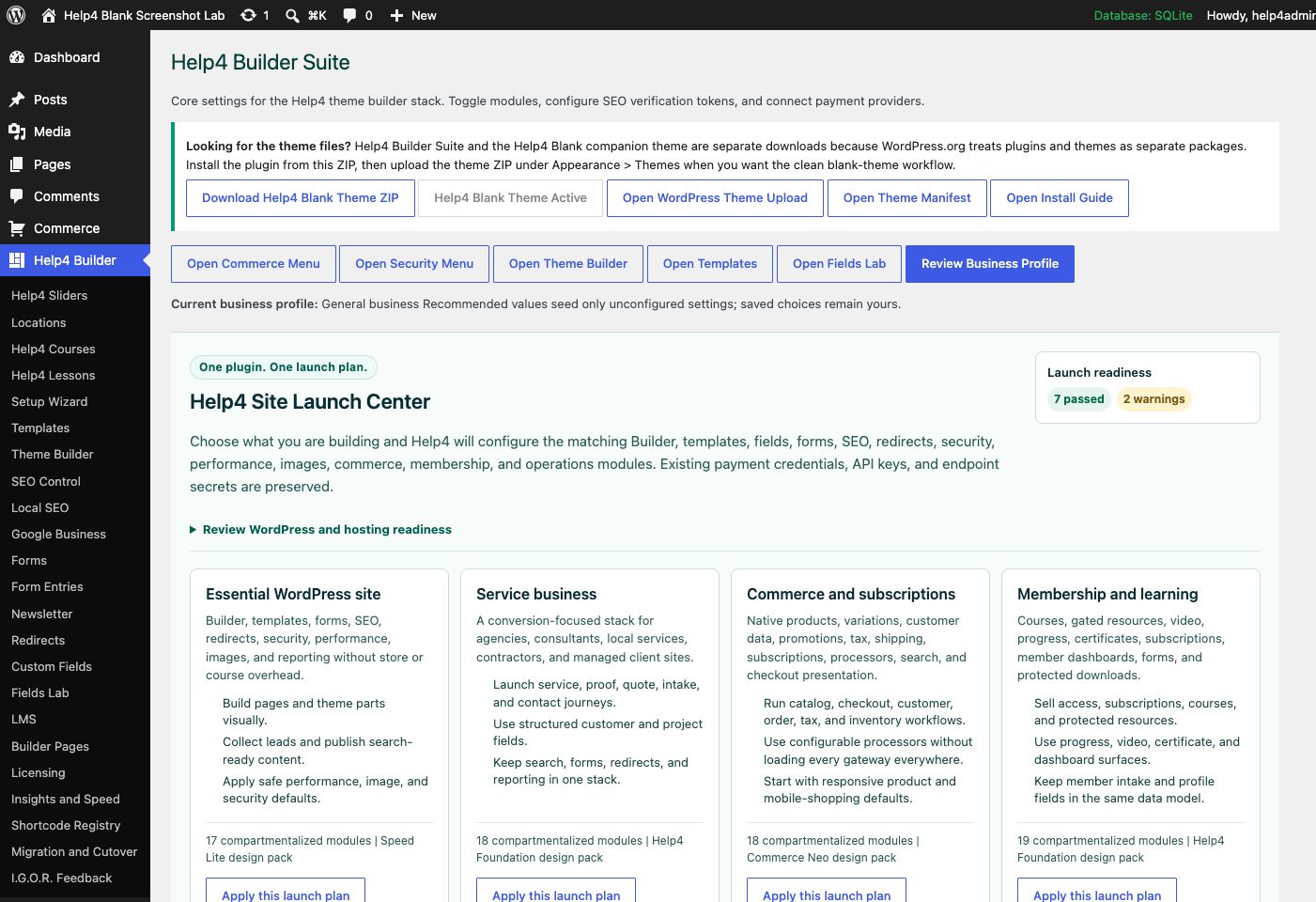
Screen 2
Settings and launch center
Choose a launch plan, confirm modules, download Help4 Blank, review readiness, and keep the site configuration in one place.
Confirm: the page title, selected item, plugin version, and intended responsive view match the task.
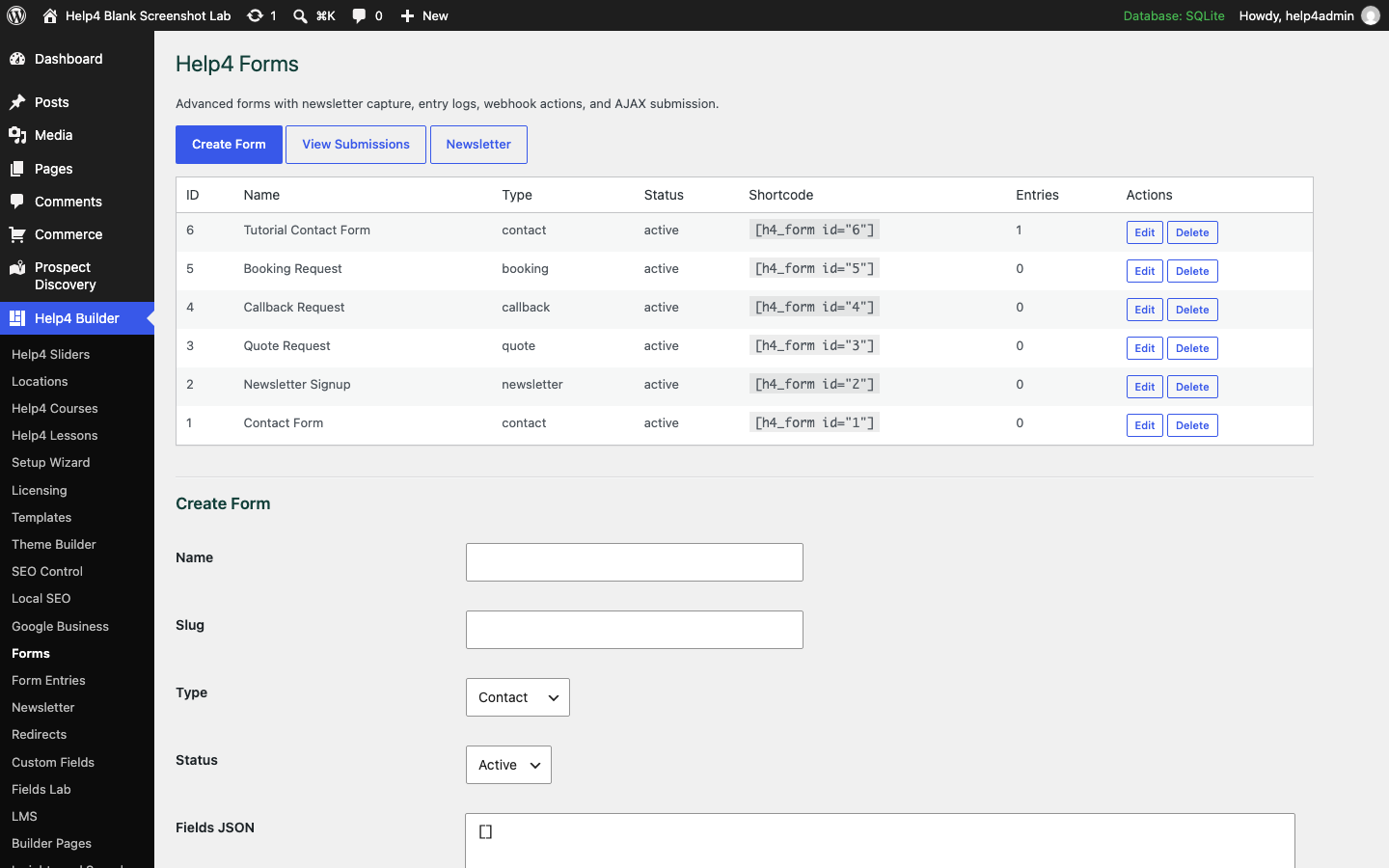
Screen 3
Forms and delivery
Create and verify forms, delivery, submissions, consent, and spam controls as one complete workflow.
Confirm: the page title, selected item, plugin version, and intended responsive view match the task.
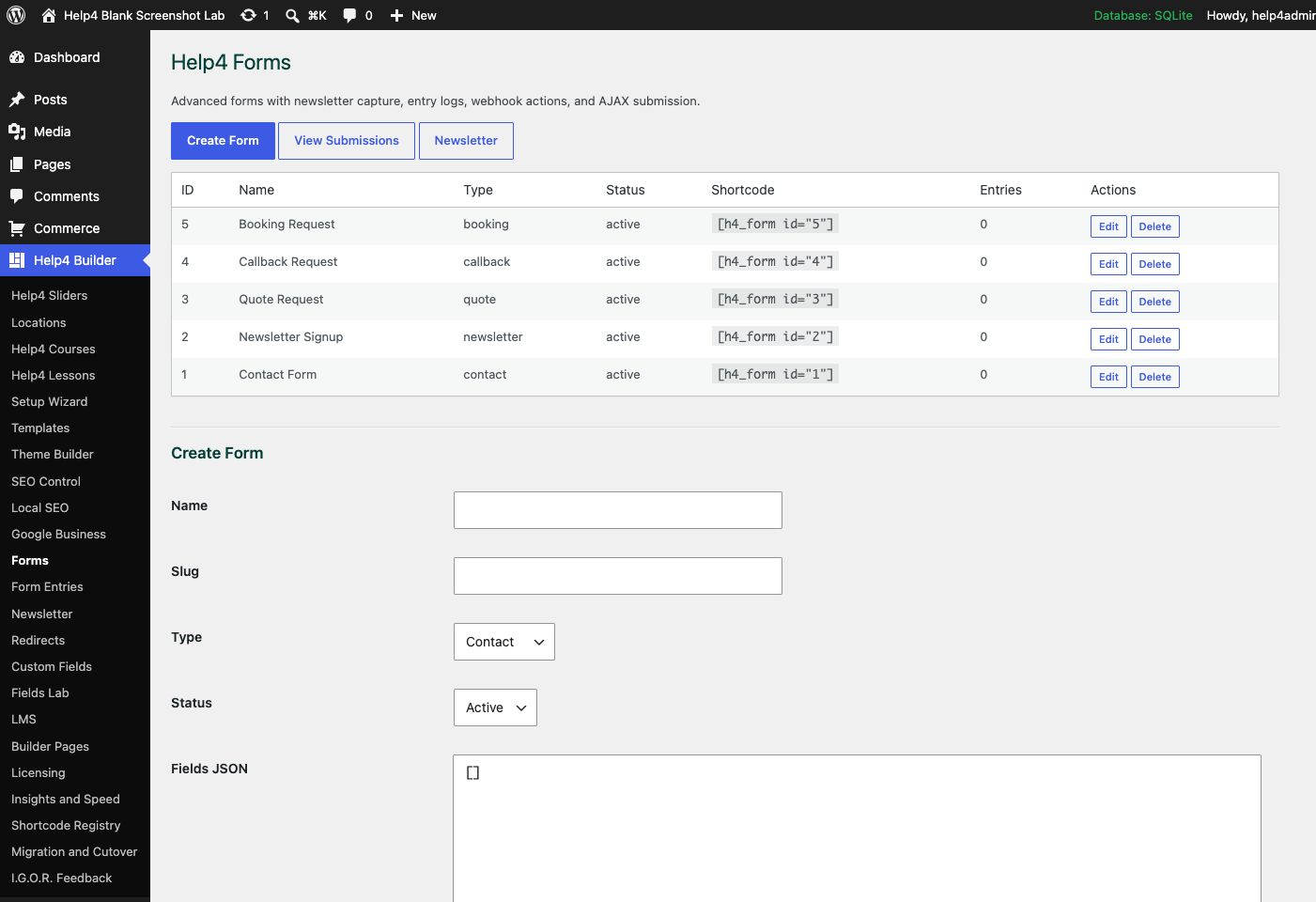
Screen 4
Forms
Create quote, contact, newsletter, booking, and support forms with clear routing and confirmation messages.
Confirm: the page title, selected item, plugin version, and intended responsive view match the task.
Watch the real workflow
Watch the clicks before making the change.
Use the narrated walkthrough first, then follow the written steps and verification checks on this page.
Lesson 21
Newsletter Subscribers and Campaign Readiness
Read the complete transcript
- Build the Signup Form
Create a short newsletter form with a visible email label, clear purpose, required consent where applicable, an honest confirmation message, spam protection, and the correct privacy link. Keep personal newsletter signups separate from business prospect records and unrelated contact forms.
- Review Subscriber Status
Open Newsletter to review subscriber email, name, tags, and status. Add a person manually only when the source and permission are known. Preserve pending, confirmed, unsubscribed, bounced, complained, and suppressed states so a later import or export cannot quietly reactivate them.
- Prepare Sender and Audience Data
Before sending, verify the From name, reply address, postal address, authentication records, privacy URL, unsubscribe path, and audience segment outside the page design. Use tags that describe a real signup source or interest, and do not invent engagement or consent history.
- Test the Handoff
Submit a real test signup, confirm validation and storage, exercise confirmation and unsubscribe paths, and inspect fresh logs. If an external or later campaign module receives the audience, verify suppression, personalization, mobile email layout, reply handling, delivery, open measurement, and click measurement before scheduling.
Lesson 9
Forms, Lead Delivery, and Spam Protection
Create a form, add it to a page, configure delivery and consent, and test the full submission path.
Read the complete transcript
- Create the Form
Open Help4 Forms and create the form record first. Give it a clear internal name so editors can choose the correct form later without guessing.
- Place It on the Page
In Studio, insert the Form widget and select the saved form. Keep labels visible, mark required fields accurately, and use fields that match the actual follow-up workflow.
- Configure Delivery
Set the recipient, reply behavior, confirmation message, consent text, retention, and spam controls. Do not assume a form works merely because it looks correct.
- Submit a Real Test
Publish to the approved test page and submit from desktop and mobile. Confirm validation, success messaging, stored submission, notification delivery, and the reply path end to end.
Campaign foundation
Treat deliverability, consent, and suppression as product requirements.
A polished email is not ready until the sender, audience source, unsubscribe path, postal address, privacy URL, daily cap, and test delivery are verified.
Sender identity
Use a monitored From address and Reply-To address on a domain with the required mail authentication records.
Audience state
Send only to the intended subscribed segment and keep unsubscribed, bounced, complained, or suppressed contacts out of every queue.
Message quality
Use a descriptive subject, honest preview text, readable mobile layout, useful links, and a plain destination for every action.
Measurement
Treat accepted mail as transport acceptance, open rates as estimates, and unique clicks as the stronger engagement signal.
Guided walkthrough
Make one verified change at a time.
Each step includes the action, why it belongs in this order, and the checkpoint to verify before moving forward.
-
Enable Email Marketing
Open Help4 Builder settings, enable Email Marketing, then open Help4 Builder > Email Marketing.
Why nowStarting from a confirmed target prevents a correct edit from being applied to the wrong page, template, product, or responsive view.
Done whenThe enable email marketing result is visible, remains after reselecting the item, and has not changed unrelated content or styling.
-
Verify sender settings
Set From name, From email, Reply-To, postal address, privacy URL, daily cap, and both delivery verification gates.
Why nowCompleting and checking this step creates a known-good checkpoint before the next control changes the page state again.
Done whenThe verify sender settings result is visible, remains after reselecting the item, and has not changed unrelated content or styling.
-
Create the signup path
Add the h4_email_signup form where people expect it, name the source clearly, and complete a real confirmation and unsubscribe test.
Why nowCompleting and checking this step creates a known-good checkpoint before the next control changes the page state again.
Done whenThe create the signup path result is visible, remains after reselecting the item, and has not changed unrelated content or styling.
-
Build segments and templates
Create focused segments from tags or source data and save reusable branded templates before drafting campaigns.
Why nowCompleting and checking this step creates a known-good checkpoint before the next control changes the page state again.
Done whenThe build segments and templates result is visible, remains after reselecting the item, and has not changed unrelated content or styling.
-
Draft one campaign
Write the subject, preview text, accessible HTML content, destination links, and optional UTC schedule without queueing it yet.
Why nowCompleting and checking this step creates a known-good checkpoint before the next control changes the page state again.
Done whenThe draft one campaign result is visible, remains after reselecting the item, and has not changed unrelated content or styling.
-
Test delivery and suppression
Send to a controlled test audience, inspect desktop and mobile mail, then confirm unsubscribe and suppression prevent another send.
Why nowCompleting and checking this step creates a known-good checkpoint before the next control changes the page state again.
Done whenThe test delivery and suppression result is visible, remains after reselecting the item, and has not changed unrelated content or styling.
-
Queue and review reports
Queue only after the gates pass, then review accepted, failed, unique-click, open-estimate, unsubscribe, and automated-activity values.
Why nowThe final verification separates an editor preview from a result that is actually saved, responsive, interactive, and ready for visitors.
Done whenThe queue and review reports result is visible, remains after reselecting the item, and has not changed unrelated content or styling.
Release check
Test the real public or member outcome, not only the settings screen.
Reopen the saved setting, run the intended workflow in the correct visitor state, test desktop and phone behavior where a frontend surface exists, and inspect fresh browser or PHP errors from the same attempt.
Persistence
The saved values remain correct after reload and do not overwrite newer settings from another session.
Public behavior
The intended visitor can complete the workflow and an unintended visitor cannot access protected output.
Responsive behavior
Controls, text, tables, media, dialogs, and focus stay visible and usable at 768px, 390px, and 360px.
Fresh evidence
The final request has the expected status, output, cache state, and no new related console or PHP error.
Common questions
Answers for the decisions that block this setup most often.
Does accepted mean the email reached the inbox?
No. Accepted means the configured WordPress mail transport accepted the message; inbox placement still depends on the receiving system and sender reputation.
Why are open rates estimates?
Image blocking, privacy relays, and automated scanners can hide or inflate opens, so unique human clicks are usually the stronger engagement signal.
Can an unsubscribed contact enter a drip campaign again?
The suppression state should keep unsubscribed contacts out of later campaign and automation queues unless they complete a new lawful subscription action.
Continue learning
Use the next guide that matches the work in front of you.
The full tutorial hub remains available without repeating dozens of unrelated cards on this page.
Start here
Install and setup
Download the ZIP, activate Builder Suite, understand the blank-theme path, and run the first clean check.
First page
Build a page safely
Open Builder Pages, launch Studio, build structure first, check mobile, then publish or hand it to Help4.
Editor controls
Know which tab changes what
Use Content for information, Design for appearance and responsive values, and Advanced for identity, attributes, visibility, and motion.
Recovery
Edit without losing work
Replace media safely, recognize stale drafts, and restore a known-good page snapshot from Page Settings History.
Responsive
Control every viewport
Set spacing, widths, columns, alignment, and typography independently for desktop, tablet, and mobile.
Templates
Choose a starter
Pick a starter spec by page job: service, product, support, recent work, local SEO, launch, or checkout recovery.
Need a second set of eyes?
Send one complete, privacy-safe support record.
Include the affected URL or admin screen, current Builder version, user state, exact steps, expected result, actual result, and one screenshot or fresh error when available.