
Edit your Personalizer website pages as the owner
The Personalizer landing page, demo introduction and tutorials are normal editable website pages. You can update the copy, add your own product photographs, change the support link and reorganize the layout. The interactive editor is a separate shortcode or builder widget inside the page.
Jump to a step
On this page: 1. Find the page and open its existing editor · 2. Change text and headings · 3. Replace photographs, buttons and support links · 4. Change the starting product without rebuilding the page · 5. Preview, update and verify · 6. Keep the tutorial hub and navigation useful
1. Find the page and open its existing editor
Sign in to WordPress and open Pages, then All Pages. Find the page by its title and choose Edit. Check its existing content and builder before making changes. Open Elementor or Beaver Builder through the page’s usual builder action, or open the page in Help4 Builder if that is how its layout is managed.
Keep using the editor that owns the page layout. Switching an existing builder page into a different builder without a migration can leave duplicated content or change the layout. The tutorial pages supplied with this project use ordinary editable WordPress content blocks; they do not require a plugin-code change for a wording correction.
2. Change text and headings
Click a paragraph and replace its text. Select a heading block to change its wording or level. The page title supplies the main H1; use H2 for the main sections within the page and H3 for a subsection when needed. Keep headings specific, such as Upload a photograph or Choose a crystal size.
Update instructions to match the choices your shop actually offers. If you disable customer uploads for a product, remove copy promising uploads on that product’s page. Describe printer connections and customer webcams as Pro features in development. The restricted Help4WordPress preview can show updating JPEG snapshots after setup; it does not supply a manufacturer driver or continuous live video.
Match the editor to your shop
Open Personalizer > Editor appearance to choose Help4 charcoal & gold, Light studio or Custom colors. Set the desktop controls beside or below the 3D preview and choose whether save, review and cart actions sit above or below the workspace. These controls are included in the free editor.
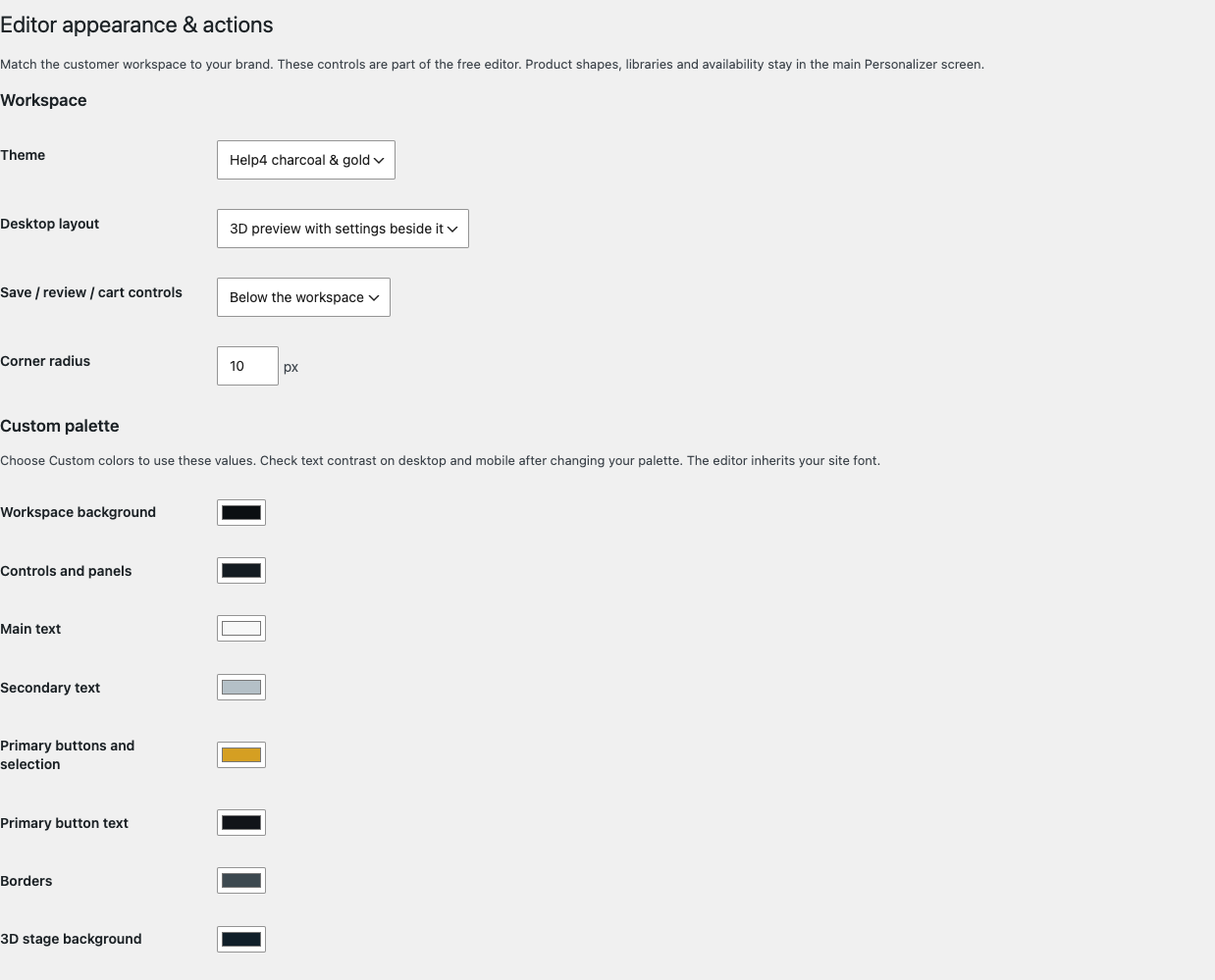
Use Headings and button labels to change the editor introduction and action wording. Visible controls lets you adjust the sample button, price estimate, saved designs, help links and optional flat-layout workspace. Showing cart controls keeps proof review available. Hiding a control does not change product availability or checkout checks.
Choose Save editor appearance, then reload a customer page and inspect the result at desktop and phone widths. Check contrast, the mobile Photos, text & product options sheet, and the full save-and-proof journey. Update the customer instructions if you rename an action.
3. Replace photographs, buttons and support links
Select an image block or builder image widget, choose a new image from the media library, and write useful alternative text describing its purpose. Use your own authorized product photographs. A public page photograph is separate from the private customer uploads used in a design.
Select a linked phrase or a button to change its destination. Use a clear label such as Try the designer, Read the setup guide or Contact support. Open the destination in a preview to confirm that it exists. The support link for these pages should point to the Help4 Network contact page.
Changing a button’s wording does not change its URL automatically. Check both. If you change a page slug, update the links pointing to it and create the appropriate redirect using your site’s redirect tools. Avoid changing a working tutorial URL solely to improve the wording of its visible page title.
4. Change the starting product without rebuilding the page
Select the Personalizer widget or module and choose a different Starting product template. In a Shortcode block, update the template attribute using the correct identifier. The introduction can be hidden with show_header="0" if your page already introduces the designer.
Keep a single Personalizer editor in the page. You can rearrange the surrounding instructions and add product information above or below it. To change a frame’s dimensions, stock artwork or availability, open Personalizer and edit its reusable template instead; page layout controls do not change the product catalog.
5. Preview, update and verify
Preview the page at desktop and mobile widths before publishing. Check headings, reading order, images, button destinations and the editor area. Update or publish through the editor you are using, then view the public page in a fresh tab. Purge that page’s cache where your site configuration requires it.
For a content-only change, confirm the changed wording on the public page. After moving or replacing the editor widget, also upload a test image, save, reload and review the proof. If a change goes wrong, inspect the page’s WordPress revisions or your builder’s history and restore the intended version, then verify the public result again.
6. Keep the tutorial hub and navigation useful
Add links to the tutorial hub from your plugin landing page and support area. When you add a new tutorial, publish it as an ordinary page, link to it from the hub and add a relevant next-step link from an existing guide. Keep navigation labels short enough to fit on a phone.
If your site uses a block theme, edit its navigation through the Site Editor; if your theme or builder owns the menu, use its existing menu controls. Keep product availability and prices in the catalog and commerce system so that a page edit cannot accidentally leave a second, outdated set of sales details.
Continue the walkthrough
Change frames and catalog choices · Add or reconfigure the editor