
WordPress Self Help
What to send Help4
A better support request starts with the page, the screenshot, and the goal.
These screens show the Builder Suite path Help4 uses to map a request into setup, page work, builder edits, or post-launch support.
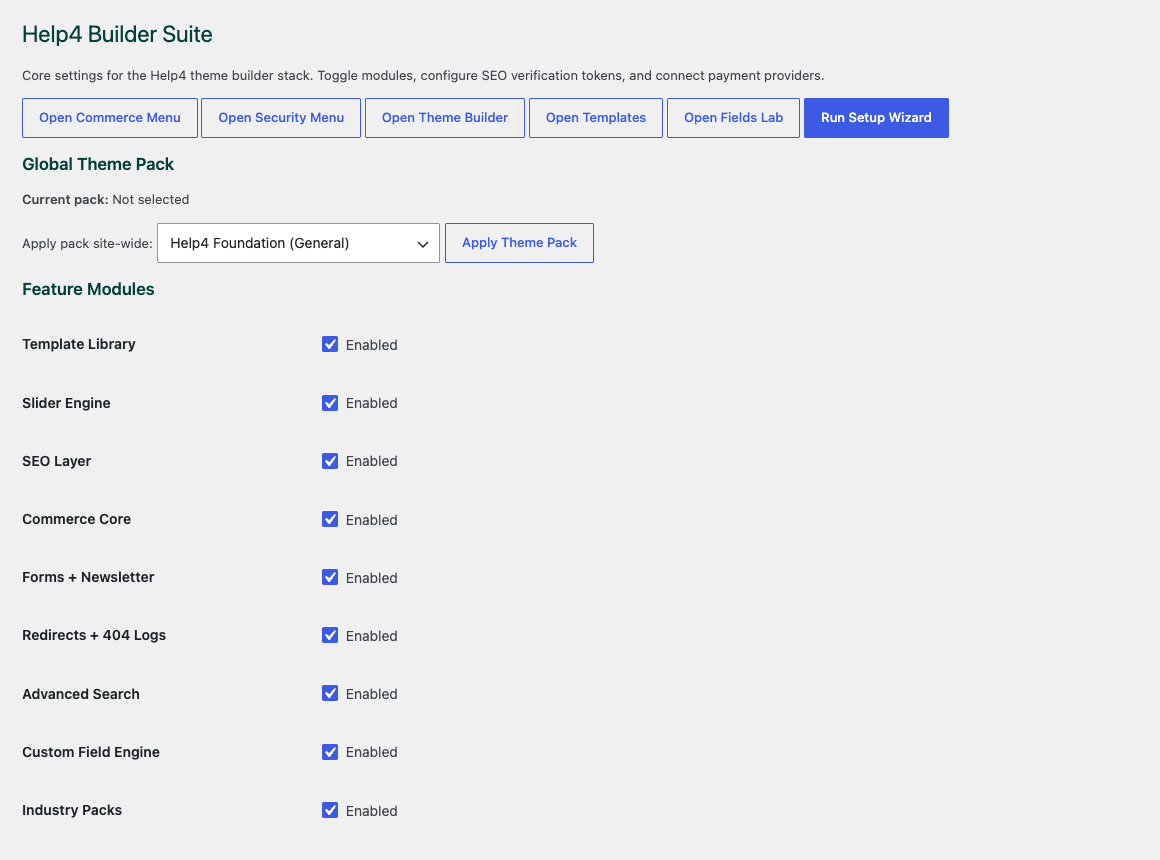
Choose the site modules
Start with the parts the site actually needs so builder, media, commerce, forms, speed, and security stay controlled.
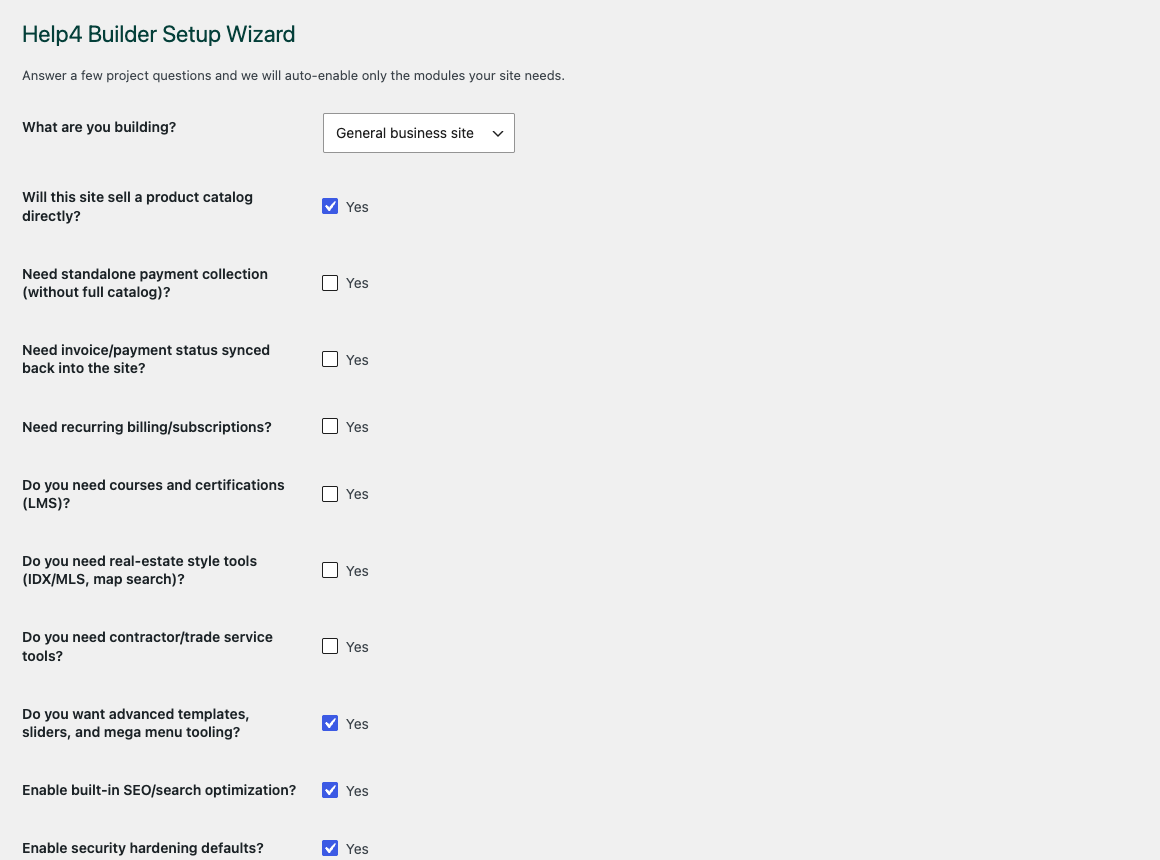
Walk through setup
The wizard gives beginners a path into the builder instead of dropping them into an empty admin screen.
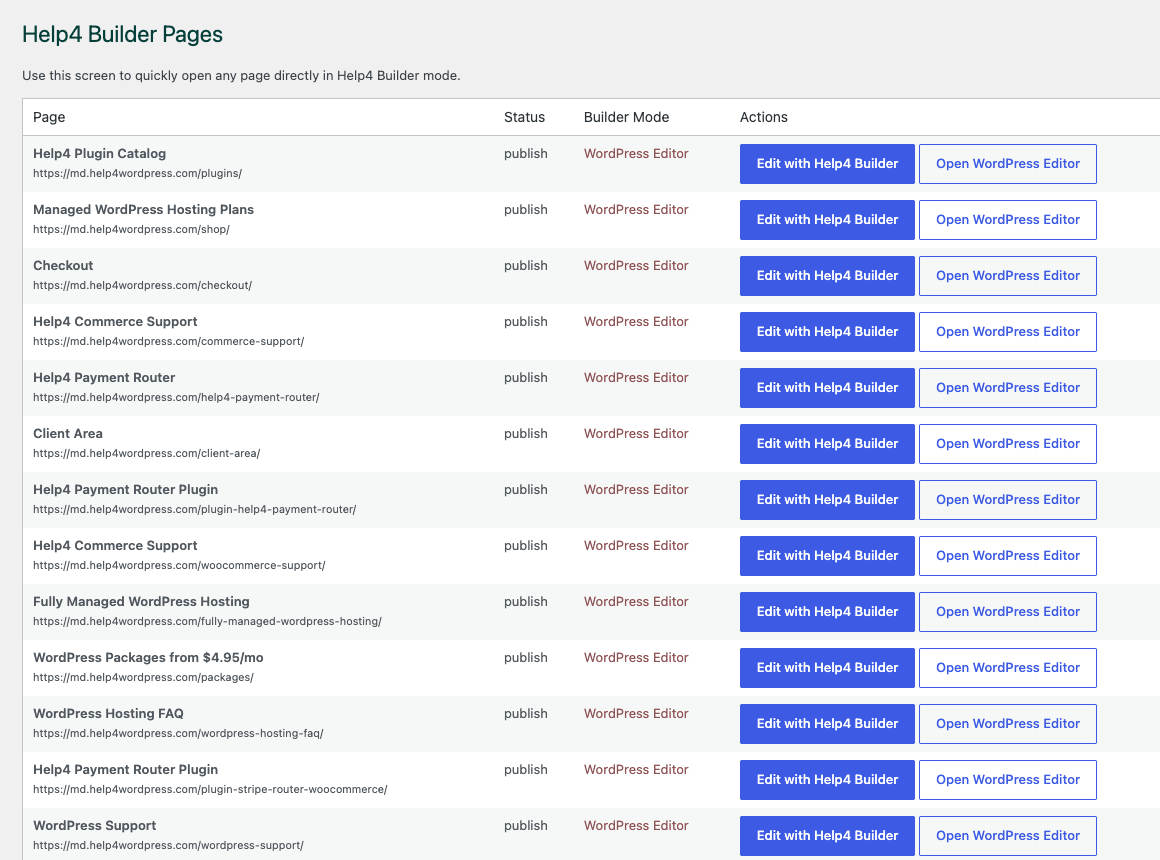
Open the right page
Builder Pages gives customers and Help4 support a shared place to organize page, template, and content work.
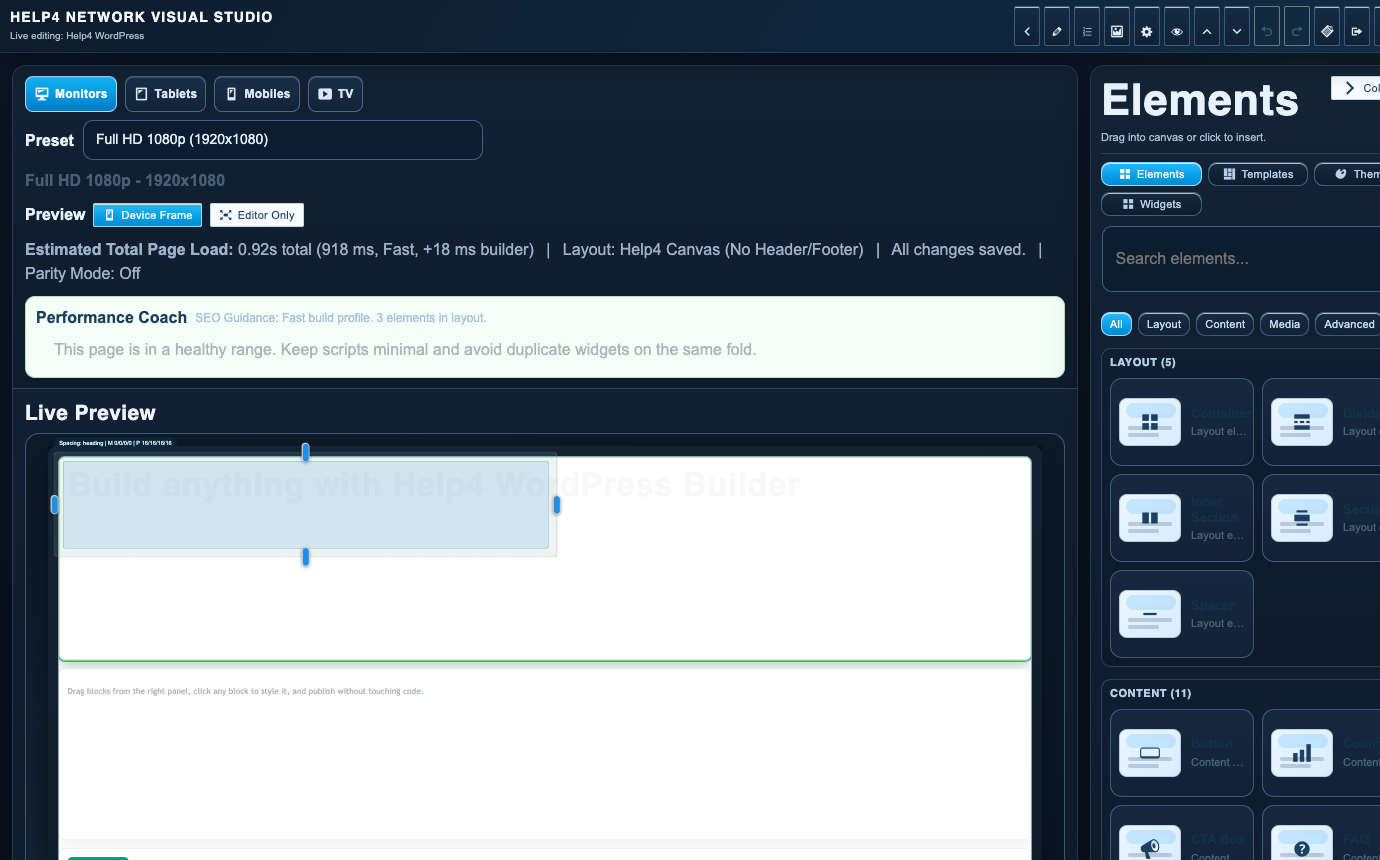
Finish in Builder Studio
The studio is where sections, copy, visual checks, reusable structure, and mobile edits come together.
Site is down
Do not keep clicking around. Open a ticket and include the domain, the error, and when it started.
Page looks wrong
Send the page URL, screenshot, what changed recently, and a simple description of what should look different.
Need a new page
Send copy, images, a design, a competitor example, or rough notes. Help4 can turn that into a WordPress page.
Site is slow
Tell us which pages feel slow and whether speed matters for ads, SEO, checkout, or a launch.
Security worry
If you see redirects, spam pages, unknown users, or warnings, open a ticket and stop editing until the site is checked.
Not sure what plan
Describe what you want off your plate. Help4 will map the request to hosting, care, growth, priority, rescue, or custom work.
Diagnose before changing production
Use WordPress self help without turning one problem into three
Start by recording the affected URL, exact error, time, device, and last known change. Confirm whether the problem affects every visitor or only one browser or signed-in account. A backup and a reproducible symptom are more valuable than a fast sequence of random plugin changes.
Use a staging copy for theme, plugin, PHP, and WordPress core tests whenever possible. Change one variable at a time, clear the relevant cache, check the public page, and review fresh logs. Stop when the site handles revenue, customer data, payments, or a failure you cannot safely reverse.
- Check status, backups, disk space, DNS, SSL, and recent changes before editing code.
- Do not post passwords, API keys, payment credentials, or private logs in public forums.
- Escalate malware, checkout failures, database errors, and widespread outages quickly.